AI Image Generation Setup
AI image generation is an optional feature. When enabled, users can generate images for project covers, character portraits, and other visuals.
For how users interact with this feature, see the User Guide: AI Image Generation.
Supported Providers
| Provider | Requirements |
|---|---|
| OpenAI | OpenAI API key |
| OpenRouter | OpenRouter API key |
| Fal.ai | Fal.ai API key |
| Stable Diffusion | Self-hosted AUTOMATIC1111 WebUI with --api flag |
| Cloudflare Workers AI | Cloudflare Account ID + API Token |
Configuration
Image generation is set up on two admin pages: Admin → AI Providers holds the API keys, and Admin → AI Images holds the on/off switch and the model profiles users pick from.
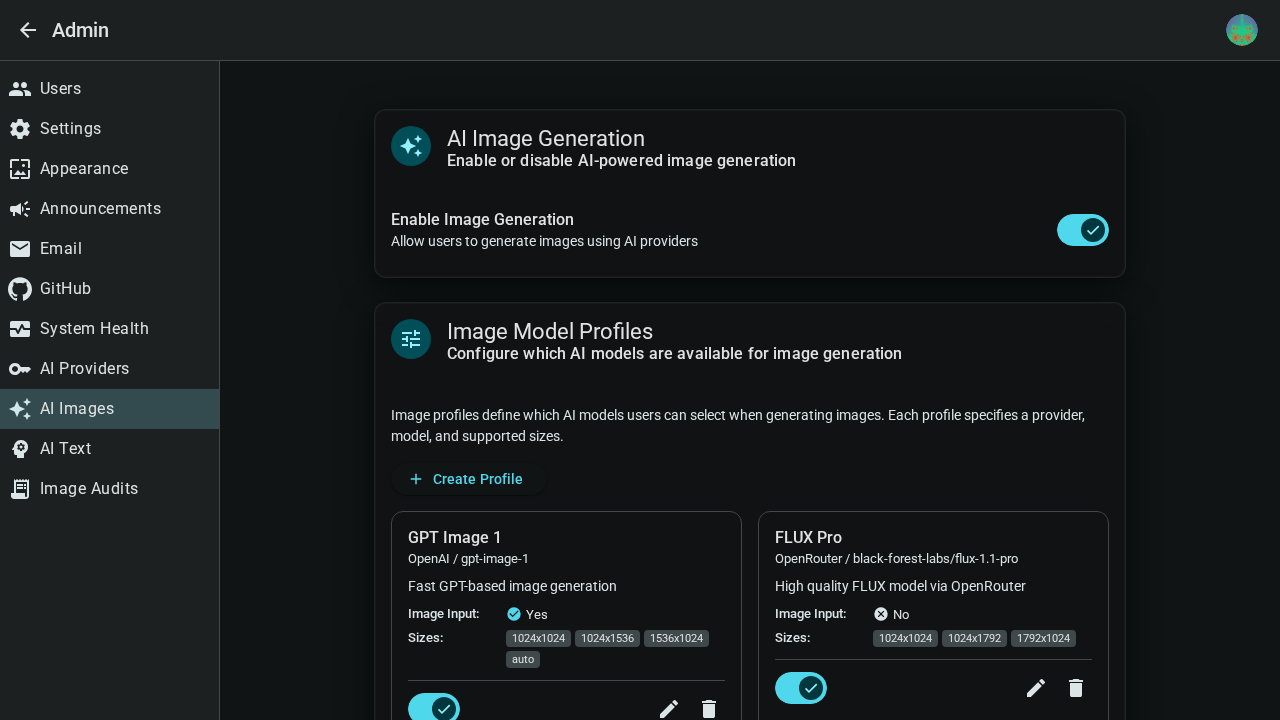
Global Toggle
Enable Image Generation controls whether the feature is available to users. When disabled, no generation buttons appear in the UI.
Image Model Profiles
Profiles define which AI models users can choose from. Each profile wraps a provider + model combination. A profile card shows its provider and model, whether it accepts an input image, and its supported sizes; use the switch to hide a profile from users without deleting it, or the pencil and trash buttons to edit or delete it.
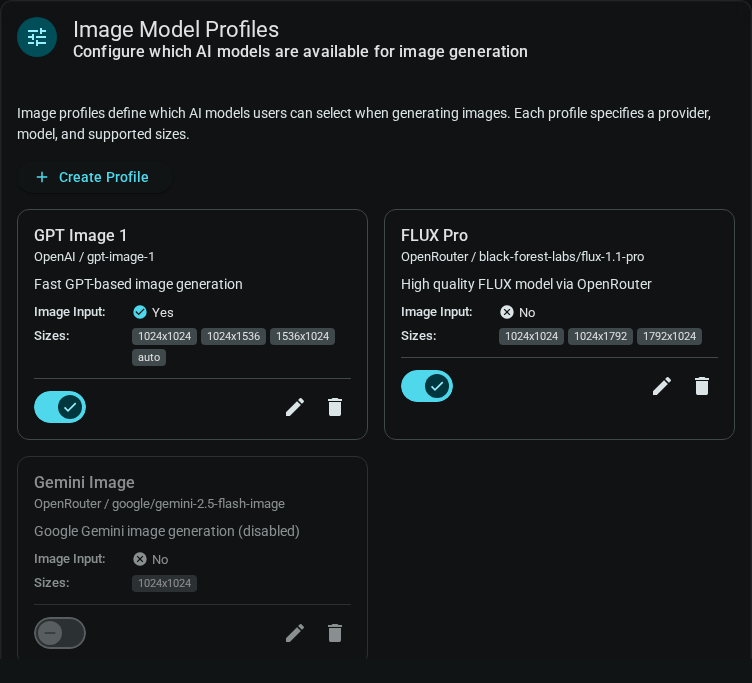
To create a profile:
- Click Create Profile
- Fill in Name (what users see) and an optional Description
- Pick a Provider, then choose the model (see below)
- Set the capability switches and sizes
- Click Create Profile (or Save Changes when editing)
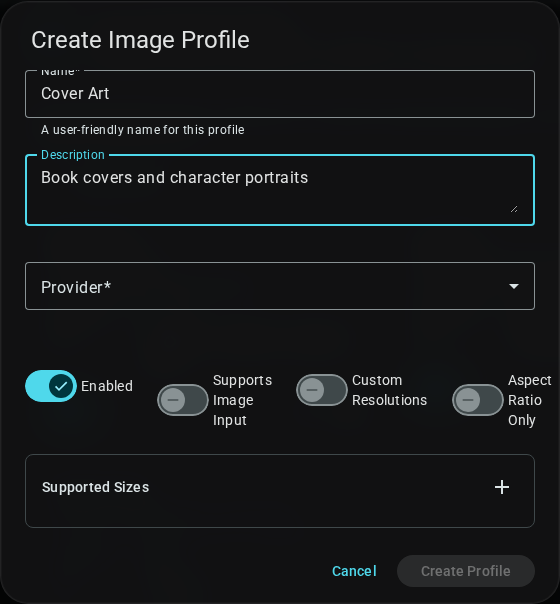
Which fields appear depends on the provider:
| Field | Applies to | What it does |
|---|---|---|
| Model Type | Fal.ai | Text to Image or Image to Image. Choose it first; it filters the model list and sets Supports Image Input. |
| Model | OpenAI, OpenRouter, Fal.ai, Workers AI | OpenAI offers a fixed list. The others search the provider's live model list (use the refresh button if it is empty or your API key just changed). |
| Model ID | Stable Diffusion | Typed in by hand: the model identifier from your Stable Diffusion API. |
| Enabled | All | Whether users can pick the profile. Same switch as on the profile card. |
| Supports Image Input | All except OpenAI and OpenRouter | Lets users attach reference images. OpenAI and OpenRouter set this automatically. |
| Custom Resolutions | All except OpenRouter | Lets users enter any width and height instead of picking a listed size. |
| Aspect Ratio Only | All except OpenRouter | For models that accept an aspect ratio (such as 16:9) rather than pixel dimensions; the size list then shows ratios. |
| Supported Sizes / Default Size | All except OpenRouter | Sizes users can choose, as 1024x1024, and the one pre-selected. OpenRouter models use fixed aspect ratios, configured automatically. |
| Sort Order | All | Lower numbers appear first in the user's profile list. |
| Advanced: Model Config JSON | All | Provider-specific options as a JSON object, for example {"quality": "hd", "style": "vivid"}. |
Provider Setup
On Admin → AI Providers, expand a provider card and add your API key to enable it.
| Provider | API Key Source |
|---|---|
| OpenAI | platform.openai.com/api-keys |
| OpenRouter | openrouter.ai/keys |
| Fal.ai | fal.ai/dashboard/keys |
| Stable Diffusion | Self-hosted — enter your WebUI endpoint URL |
| Workers AI | dash.cloudflare.com — Account ID + API Token |
Environment Variables
Providers can be configured via environment variables. A key or setting saved in the admin panel takes precedence.
AI_IMAGE_ENABLED=true

# OpenAI (or any OpenAI-compatible API)
AI_IMAGE_OPENAI_ENABLED=true
OPENAI_API_KEY=sk-...
# OPENAI_API_BASE=https://your-compatible-endpoint/v1

# OpenRouter
AI_IMAGE_OPENROUTER_ENABLED=true
OPENROUTER_API_KEY=sk-or-...

# Fal.ai
AI_IMAGE_FALAI_ENABLED=true
FALAI_API_KEY=fal-...

# Stable Diffusion
AI_IMAGE_SD_ENABLED=true
SD_API_ENDPOINT=http://localhost:7860
# SD_API_KEY=...   # only if your endpoint requires one

# Cloudflare Workers AI
AI_IMAGE_WORKERSAI_ENABLED=true
WORKERSAI_ACCOUNT_ID=your-cloudflare-account-id
WORKERSAI_API_TOKEN=your-workers-ai-api-token
These keys are shared with the AI text features (linting, Auto-Review, prompt optimization), which read OPENAI_API_KEY, OPENROUTER_API_KEY and ANTHROPIC_API_KEY from the same place. The environment does not create image profiles; add those in the admin panel.
Image generation is also gated by the AI Kill Switch, which is on by default. Turn it off before expecting any AI feature to appear.
Image audits
Admin → Image Audits (hidden while the AI kill switch is on) lists every image generation that completed or was moderated, newest first. Each record keeps:
- the date and the user who made the request,
- the profile used and the prompt text,
- the credits charged (the profile's credit cost),
- the status: success, or moderated when the provider returned a text refusal instead of an image,
- links to the generated image where one was stored, plus the reference images and any moderation message in the underlying record.
The page header shows totals for Total Requests, Total Credits Used, Successful and Moderated. Search the prompt text with Search prompts, filter by Status, and page through the results (10 to 100 per page); the view generated image button opens the output. Requests that fail before the provider responds (for example a network error) are not recorded. Reference-image URLs and a moderation message are also stored with each record, and are available through the audits API (/api/v1/admin/image-audits).
Browser and Cloud Sync profiles
AI image generation requires a server connection and is not available with a Browser or Cloud Sync profile.
Cost Considerations
Costs vary by provider. Check your provider's pricing. Self-hosted Stable Diffusion has no per-image cost.
Troubleshooting
- Provider not available: Verify API key is correct and has credits
- Generation failures: Content policy violation, rate limits, or network issues
- Stable Diffusion not connecting: Ensure WebUI is running with
--apiflag
API keys are stored encrypted and never displayed after saving.
Related
- User Guide: AI Image Generation — How users interact with this feature
- AI Kill Switch — Emergency disable for AI features