AI Kill Switch
The AI Kill Switch is the master control for AI features on an Inkweld instance. It is on by default, which means AI is off until an administrator turns it off on purpose.
Overview
When the kill switch is on (the default):
- AI image generation buttons are hidden from the UI
- The AI linting plugin and Auto-Review are not offered in the editor
- The server refuses every AI request with
403 Forbidden, even when provider keys are configured (see What the server enforces), and the project MCP settings are hidden - The AI Providers, AI Images, AI Text and Image Audits pages disappear from the admin sidebar
When the kill switch is off, features still only appear when they are configured:
- Image generation needs Enable Image Generation and at least one working provider
- AI linting and Auto-Review need Enable Text Generation (Admin → AI Text) and an API key for the default text provider
- MCP additionally needs the MCP Access setting, which is on by default
What the server enforces
The kill switch is enforced by the server, not just by hiding buttons. While it is on, every endpoint that sends content to an AI provider, or reports provider availability, answers 403 Forbidden with:
{
  "error": "AI features are disabled on this server (the AI kill switch is on). An administrator can turn it off in Admin → AI settings.",
  "code": "AI_DISABLED"
}
This applies regardless of AI_IMAGE_ENABLED, AI_TEXT_ENABLED or which provider keys are set, so a direct API call cannot reach a provider either. Blocked endpoints:
| Endpoint | Feature |
|---|---|
POST /api/v1/ai/image/generate | Image generation |
POST /api/v1/ai/image/generate-stream | Streaming image generation |
GET /api/v1/ai/image/status | Image provider status |
POST /api/v1/ai/text/optimize-image-prompt | Image prompt optimisation |
GET /api/v1/ai/text/status | Text provider status |
POST /api/v1/ai/lint | Paragraph linting |
POST /api/v1/projects/{username}/{slug}/docs/{docId}/auto-review/review | Document auto-review |
POST /api/v1/ai/mcp | MCP (answers a JSON-RPC error with HTTP 403) |
Authentication is still checked first, so an anonymous request gets 401.
These stay available while the switch is on, because none of them sends content to a provider:
- Admin configuration — provider keys and endpoints (
/api/v1/ai/providers/*), image profiles, custom image sizes, and the model catalogs — so you can set AI up completely before turning the switch off. GET /api/v1/ai/lint/status— reportsenabled: falseso the editor knows to hide linting.- Accepting, rejecting or clearing auto-review suggestions that were made earlier — these only edit the document.
Why Use the Kill Switch?
- Data Privacy: with the switch on, nothing is sent to external AI providers, through the UI or the API
- Cost Control: prevents unexpected API usage charges
- Compliance: keeps third-party AI processing out of regulated deployments
- Default Safety: ships on by default to protect users who haven't explicitly opted in
Configuration
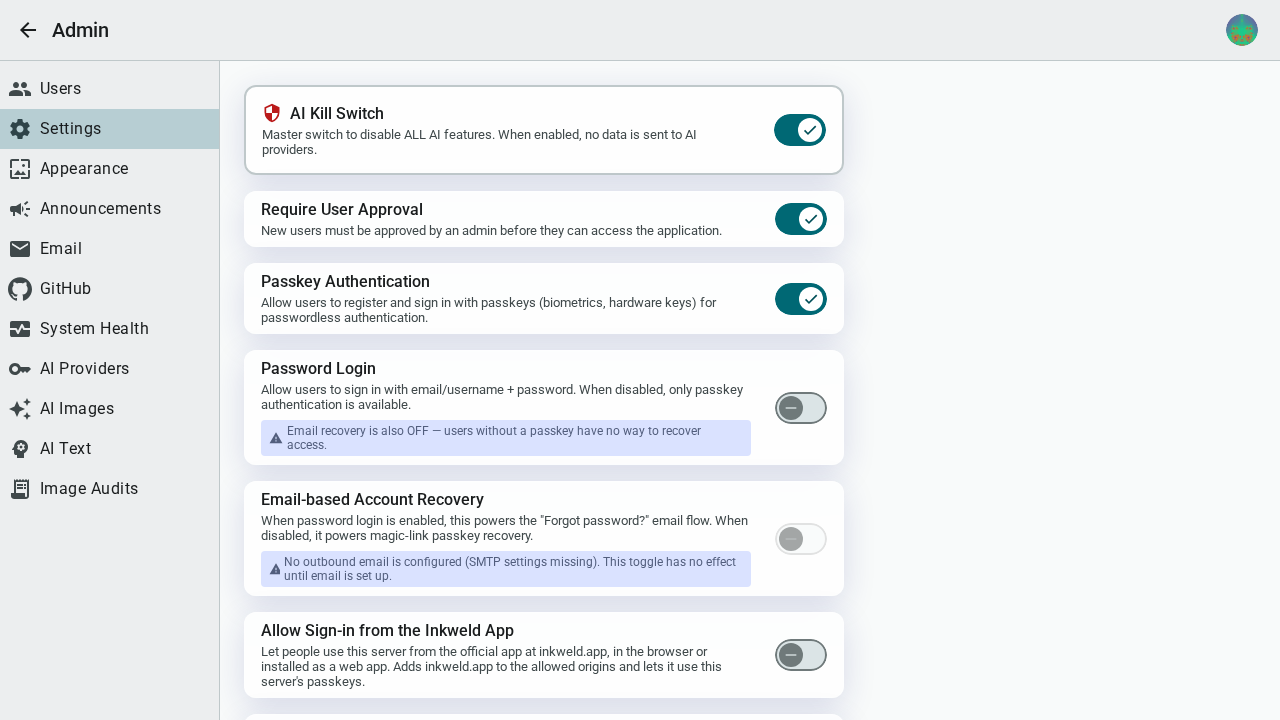
Via Admin Panel
- Navigate to Admin → Settings
- Find the AI Kill Switch toggle
- Toggle to enable/disable AI features
When disabling the kill switch (enabling AI), a confirmation dialog will appear warning about potential data sharing with third-party AI providers.
Via Environment Variable
Set the AI_KILL_SWITCH environment variable to control AI availability:
# Disable all AI features (default if not set)
AI_KILL_SWITCH=true

# Enable AI features (allows AI to work if providers are configured)
AI_KILL_SWITCH=false
When AI_KILL_SWITCH is set as an environment variable, the toggle in the Admin Panel will be disabled (grayed out). This prevents accidental changes through the UI when the server is configured to always have AI disabled.
Docker Compose Example
services:
  inkweld:
    image: ghcr.io/bobbyquantum/inkweld:latest
    environment:
      # Disable AI features entirely
      - AI_KILL_SWITCH=true
Configuration Priority
The kill switch is the one setting where the environment variable wins. Every other setting follows admin value, then environment variable, then default.
- Environment variable (highest priority): if
AI_KILL_SWITCHis set at all, the admin toggle is locked and the environment value is used. Only the exact valuefalseturns the switch off; any other value (including0or an empty string) leaves it on. - Database setting: configured on Admin → Settings → AI Kill Switch when no environment variable is set.
- Default: on (AI disabled) if neither is configured.
Affected Features
AI Image Generation
When the kill switch is on:
- The "Generate with AI" buttons are hidden from the Media tab toolbar, the project cover editor and the worldbuilding image dialogs
- AI Providers, AI Images, AI Text and Image Audits are removed from the admin sidebar, and the AI admin pages show a warning banner if opened directly
- The server does not itself reject direct API calls to image generation (see the warning above)
AI Linting and Auto-Review
When the kill switch is on, the AI linting plugin and Auto-Review are not offered in the document editor, and the lint and Auto-Review endpoints refuse requests. When it is off, they are available only if text generation is enabled and the default text provider has a key. That provider is chosen under Admin → AI Text → Default Provider (AI_TEXT_DEFAULT_PROVIDER: OpenAI-compatible, OpenRouter or Anthropic), so an OpenAI key is not required if you use another provider.
MCP
MCP access for external tools is disabled while the kill switch is on, whatever the MCP Access setting says.
WebMCP (browser agents)
The kill switch does not cover WebMCP. WebMCP lets an AI agent built into a user's browser use Inkweld from an open tab. The server sends nothing to an AI provider for it, so there is nothing for the server to refuse. It follows each user's own AI preference instead (below).
User AI preference
On top of the kill switch, every user makes their own No AI / Allow AI choice in Settings → General → AI (also offered on the first-run setup page). It defaults to No AI, so AI in Inkweld is opt-in for each user as well as for the instance:
| Kill switch | User's choice | AI features for that user |
|---|---|---|
| On | either | Off |
| Off | No AI (default) | Off |
| Off | Allow AI | Whatever the admin has enabled |
The user's choice can only turn AI off; it never overrides the kill switch. It hides image generation, the AI linting plugin and Auto-Review, and the project MCP settings. It also turns off WebMCP. The choice is stored in the user's browser and shared by every profile in it. It is not sent to the server, so the server-side enforcement above is unchanged.
Browser and Cloud Sync profiles
When Inkweld is running with a Browser or Cloud Sync profile (no Inkweld Server connection), the AI kill switch is automatically enabled. This is because:
- AI features require server communication
- Local-only mode shouldn't send data to external services
Self-Hosted AI Providers
Even with the kill switch disabled, you can maintain data privacy by using self-hosted AI providers:
- Stable Diffusion with AUTOMATIC1111 WebUI for image generation
- Local LLM endpoints for AI linting and Auto-Review: the OpenAI Compatible provider accepts a custom endpoint (
OPENAI_API_BASE, or the endpoint field on Admin → AI Providers), so servers such as Ollama or LM Studio work
When using self-hosted providers, your data stays within your infrastructure.
Best Practices
- Start with Kill Switch Enabled: Deploy with the kill switch on, then enable AI features after configuring providers
- Use Environment Variables for Production: Lock the setting via environment variable for consistent behavior
- Communicate with Users: If you enable AI features, inform users about potential third-party data sharing
- Consider Self-Hosting: For maximum privacy, use self-hosted AI providers
See Also
- AI Image Generation - Configure image generation providers
- Docker Deployment - Environment variable configuration
- Admin Panel - Web-based administration