Choosing Your Mode
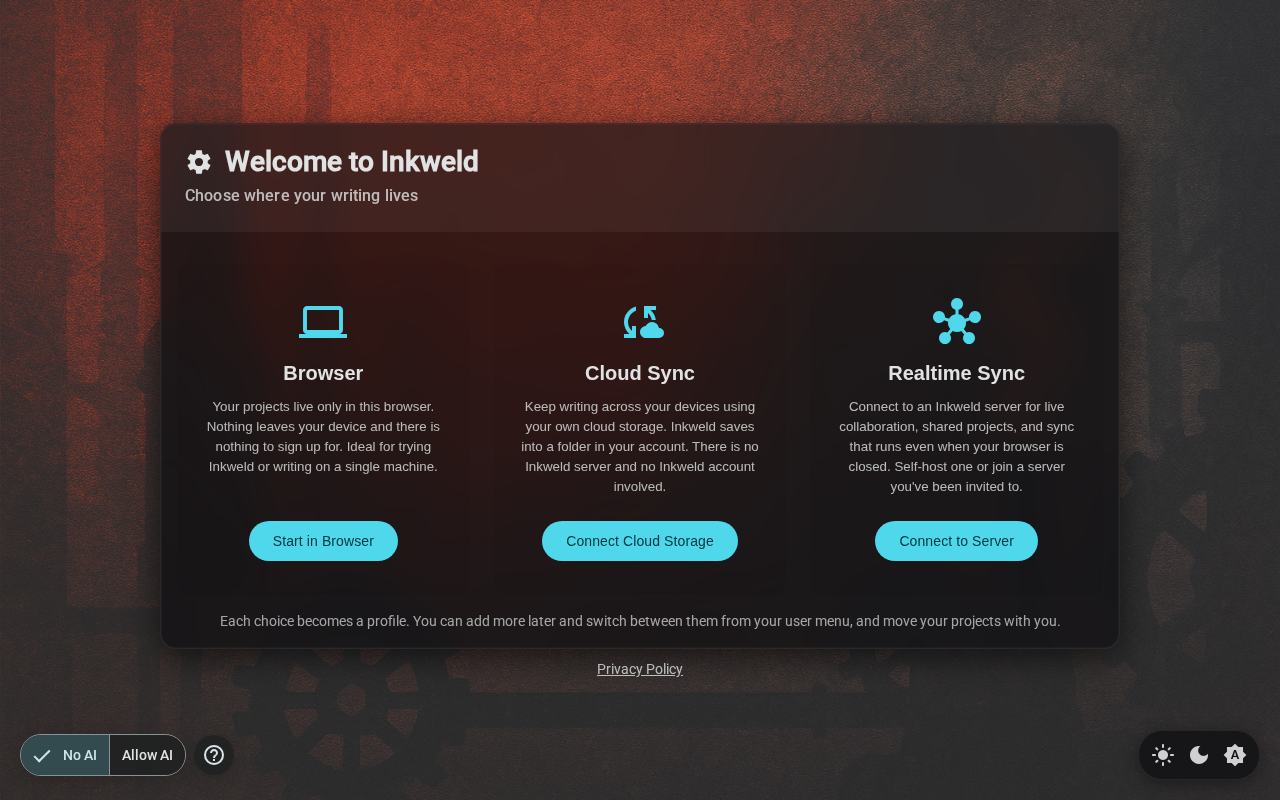
When you first open Inkweld, you'll see the mode selection screen. This lets you choose how you want to use the application.
Some Inkweld instances are pre-configured to automatically start with a Server profile. If your instance has a fixed server URL configured in its build and auto-connect enabled, you'll skip this screen and go directly to the login page. Hosted instances can also enable mode selection (the preview deployment does this) — in that case you'll see this screen even though a server URL is pre-filled.
Three Ways to Use Inkweld
| Browser | Cloud Sync | Inkweld Server | |
|---|---|---|---|
| Where your writing lives | This browser only | Your own Dropbox or Nextcloud | An Inkweld Server |
| Account needed | None | Your Dropbox or Nextcloud account | Inkweld account on that server |
| Works offline | ✅ | ✅ (syncs when back online) | ✅ (syncs when back online) |
| Use on several devices | ⬜ | ✅ | ✅ |
| Real-time co-editing, presence, cursors | ⬜ | ⬜ | ✅ |
| Share projects with collaborators | ⬜ | ⬜ | ✅ |
| Version history & snapshots | ✅ local | ✅ synced | ✅ synced |
| Media library & covers | ✅ | ✅ | ✅ |
| Publishing (PDF, EPUB, HTML…) | ✅ | ✅ | ✅ |
| AI features, MCP access | ⬜ | ⬜ | ✅ (if the server enables them) |
| Backup | Export archive | Continuous mirror + export archive | Server + export archive |
| Move to another mode later | ✅ | ✅ | ✅ |
| Cost to run | Free | Free (your storage quota) | Self-host, or a hosted server |
Browser
Your projects live only in this browser.
- All your data is stored in your browser using IndexedDB
- No account, no server, nothing to sign up for
- Projects can be exported as archive files for backup or sharing
- You can later move to Cloud Sync or connect to a server
Ideal for trying Inkweld, complete privacy, or writing on a single machine.
Cloud Sync
Keep writing across your devices using your own cloud storage.
- Inkweld saves into its own folder in your cloud account: Dropbox (where it can only see that folder) or your own Nextcloud server
- Your projects still live in the browser and work offline; changes sync a few seconds after you stop typing and whenever you open the app
- Open Inkweld on another device, connect the same account, and your projects appear. Edits made on two devices before they sync are merged automatically
- There is no Inkweld server and no Inkweld account involved
Ideal for a single writer with a laptop and a phone, or anyone who wants an off-device copy without running a server.
Inkweld Server
Connect to an Inkweld server for collaboration.
- Your data syncs to a server for backup and access from multiple devices
- Real-time collaboration with other users, with presence and shared cursors
- User accounts with authentication
- Admin features for managing users and settings
Ideal for writing teams, and for anyone who wants sync that keeps running while their browser is closed.
Setting Up Cloud Sync
Choose Cloud Sync (the button reads Connect Cloud Storage) and pick your provider.
Nextcloud is always offered. Dropbox appears only when the Inkweld you are using has been set up with a Dropbox app key, which is a choice made by whoever builds or hosts it. If you only see Nextcloud, ask whoever runs your Inkweld whether Dropbox can be enabled.
-
Dropbox: you sign in on Dropbox's own page. Inkweld never sees your password; Dropbox hands back permission to use a single app folder.
-
Nextcloud: you enter your server address, username and an app password. Your Nextcloud needs a one-time change to allow Inkweld to connect; see Cloud Sync with Nextcloud.
-
First device: Inkweld finds an empty folder and asks for a display name and username, prefilled from your account.
-
Another device: Inkweld finds your existing folder and picks up the profile and project list automatically. Projects show as cards; open one to pull it onto that device.
The user menu shows the sync status and has a Sync now action.
With Dropbox, Inkweld asks only for access to its own folder (Apps/Inkweld) and cannot see or change anything else in your account. With Nextcloud, the app password grants your normal file access, but Inkweld only touches the Inkweld folder; keep the password dedicated to Inkweld so it can be revoked on its own. Both can be revoked at any time from the provider's security settings.
Setting Up a Browser Profile
If you choose Browser, you'll create a local profile:
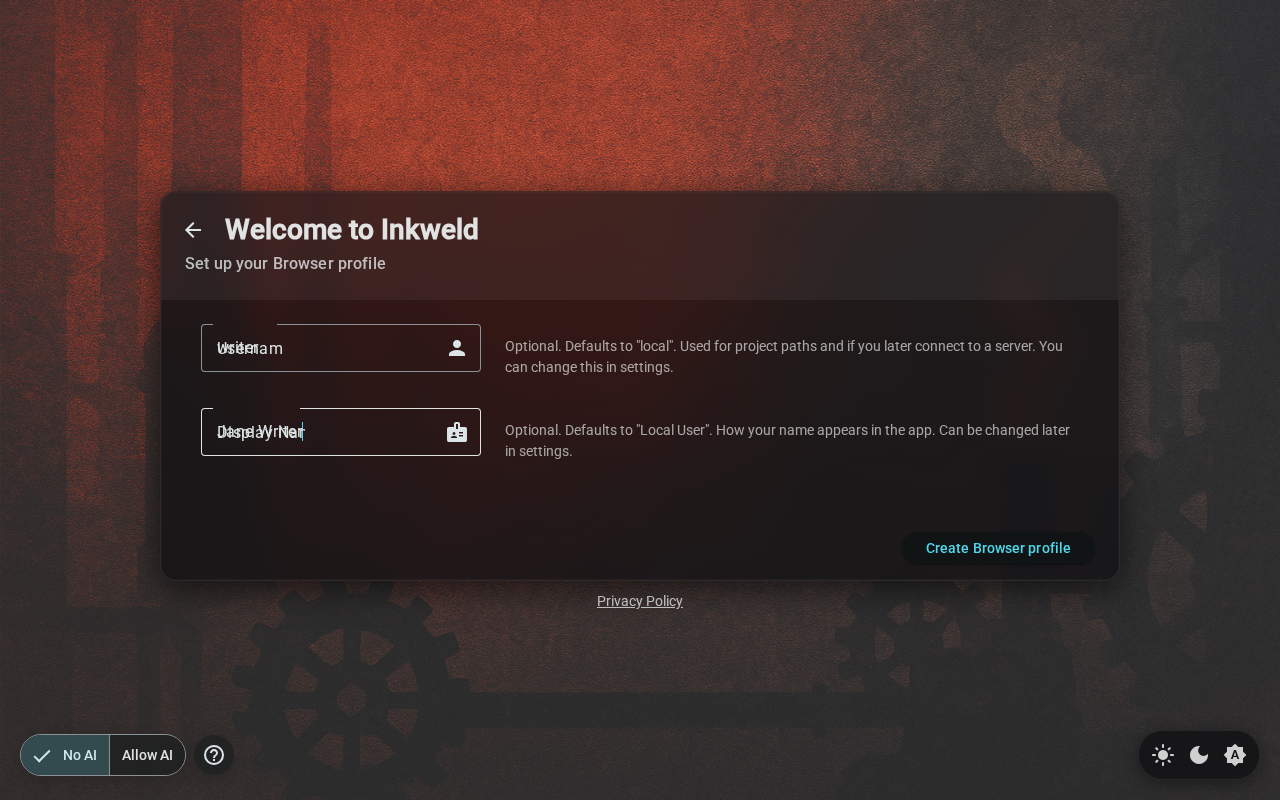
| Field | Description |
|---|---|
| Username | A short identifier (used in project URLs); optional, defaults to local |
| Display Name | Your name as shown in the app; optional, defaults to Local User |
On the mode screen click Start in Browser, fill in these two fields, then click Create Browser profile to begin. Your profile is saved locally and you'll be taken to your bookshelf.
With a Browser profile, your projects are stored in your browser's IndexedDB. Clearing browser data will remove your projects, so use the Export feature to create backups.
Connecting to an Inkweld Server
If you choose Inkweld Server, you'll enter your server's URL:
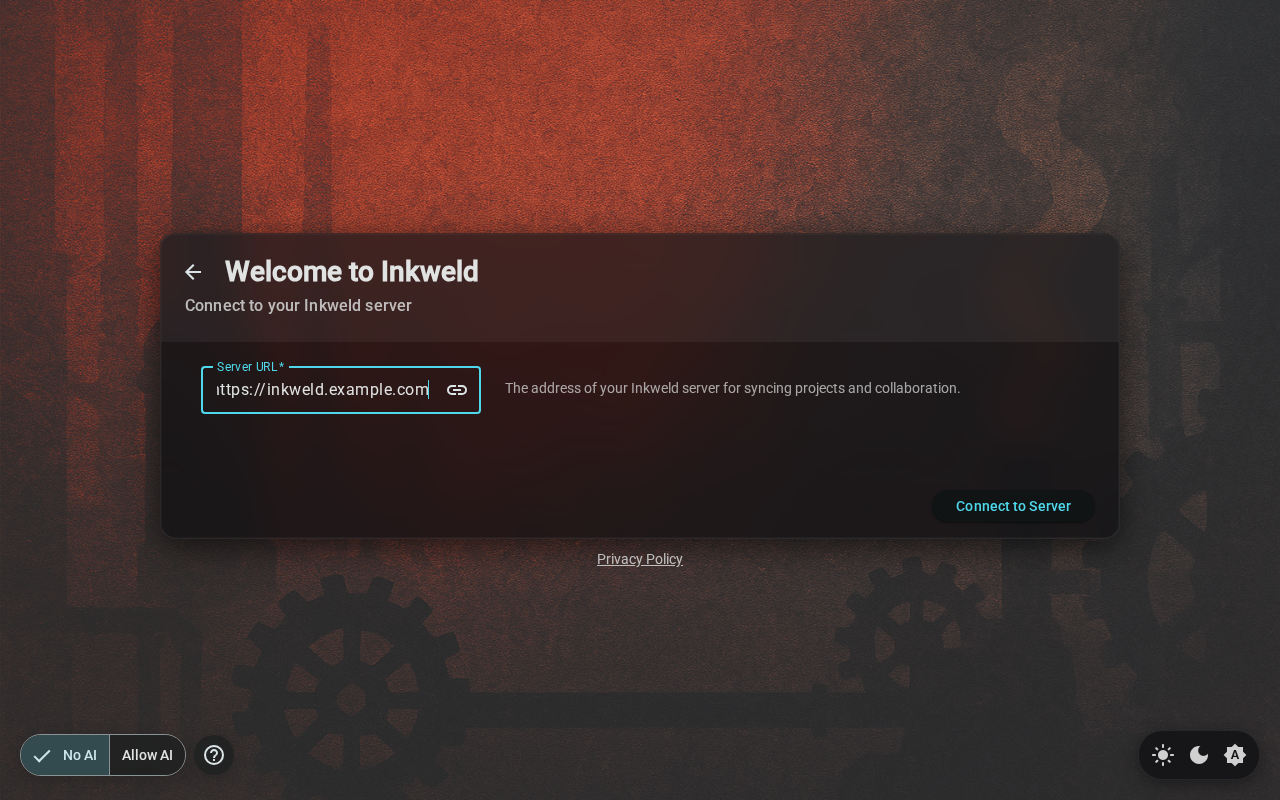
Enter the full URL of your Inkweld server (e.g., http://localhost:8333 for local development or https://inkweld.example.com for a hosted server).
Click Connect to Server to test the connection. If successful, you'll be redirected to the login or registration page.
If you're accessing a hosted Inkweld deployment (like one on Cloudflare Workers), the server connection is configured automatically — you won't see this setup screen.
Profiles: Switching, Adding and Upgrading
Each way of using Inkweld is a profile: one author identity in one place. A Browser profile is a username stored in this browser only; a Cloud Sync profile is one cloud account; a Server profile is one login on one Inkweld Server. You can have as many of each as you like, for example two Browser profiles testuserA and testuserB, two cloud accounts, or ten author accounts across several servers. Every profile keeps its own projects and settings on the device.
Switching
Open the user menu (your avatar). The header shows who you are and where that profile lives, with a switch button beside it, the same idea as switching accounts on GitHub. Press it to see every profile on this device; pick one to switch, or choose Add profile… to come back to this screen and create another without touching anything you already have.
Upgrading
A profile can move up when your needs grow. The user menu shows an upgrade button next to your connection status. On a Browser profile it reads Connect to sync; on a Cloud Sync profile it reads Move to a server. (Profiles on a server have nothing further to upgrade to, so the button does not appear.)
From a Browser profile choose Connect to sync:
- Sync to your own cloud storage (Dropbox or Nextcloud). Inkweld creates the cloud profile, copies every project, setting and cover across under the same username, and starts syncing. Your other devices can then connect to the same account.
- Move to an Inkweld server. Log in or register, and your projects are copied to that server profile. This adds live collaboration and sharing.
A Cloud Sync profile can move to a server the same way with Move to a server. Nothing is deleted: the old profile stays in the list, with a note of where its projects went and under which username, until you remove it.
One cloud account can hold several authors. When you connect an account that already has Inkweld profiles in it, you are asked whether to continue as one of them (your projects from that author appear on this device) or add a new profile that keeps its own projects in the same account. If you connect a Browser profile to sync and the account already has an author with the same username, any projects that share an address are listed so you can give the copies a new one before anything is written; nothing is overwritten.
Managing
Manage profiles… (in the switcher) opens the full list, where you can:
- Switch, upgrade, or move Browser projects into a server profile
- Remove any profile, including the current one. This removes it and its data from the device only. Servers and cloud folders are untouched. Browser projects exist nowhere else, so that one asks you to type
DELETE. - See Storage on this device: what each profile stores, plus any leftover data from old profiles, with a one-click clean-up
- Reset this device, which removes every profile and all Inkweld data from the browser
Logging in to a server profile as a different author automatically gives that author a separate profile, so two people sharing a browser never see each other's cached projects.
Resetting Your Configuration
Manage profiles… → Storage on this device → Reset this device wipes everything and returns you here. Type RESET to confirm.
Next Steps
If you chose a server, continue with Account Setup to create your account. With a Browser or Cloud Sync profile there is no account to set up — go straight to The Bookshelf.