The Bookshelf
The Bookshelf is your home in Inkweld — a visual library of all your writing projects, displayed as a collection of book covers.
Your Project Library
When you log in, you'll see your projects displayed as book covers on a virtual bookshelf:
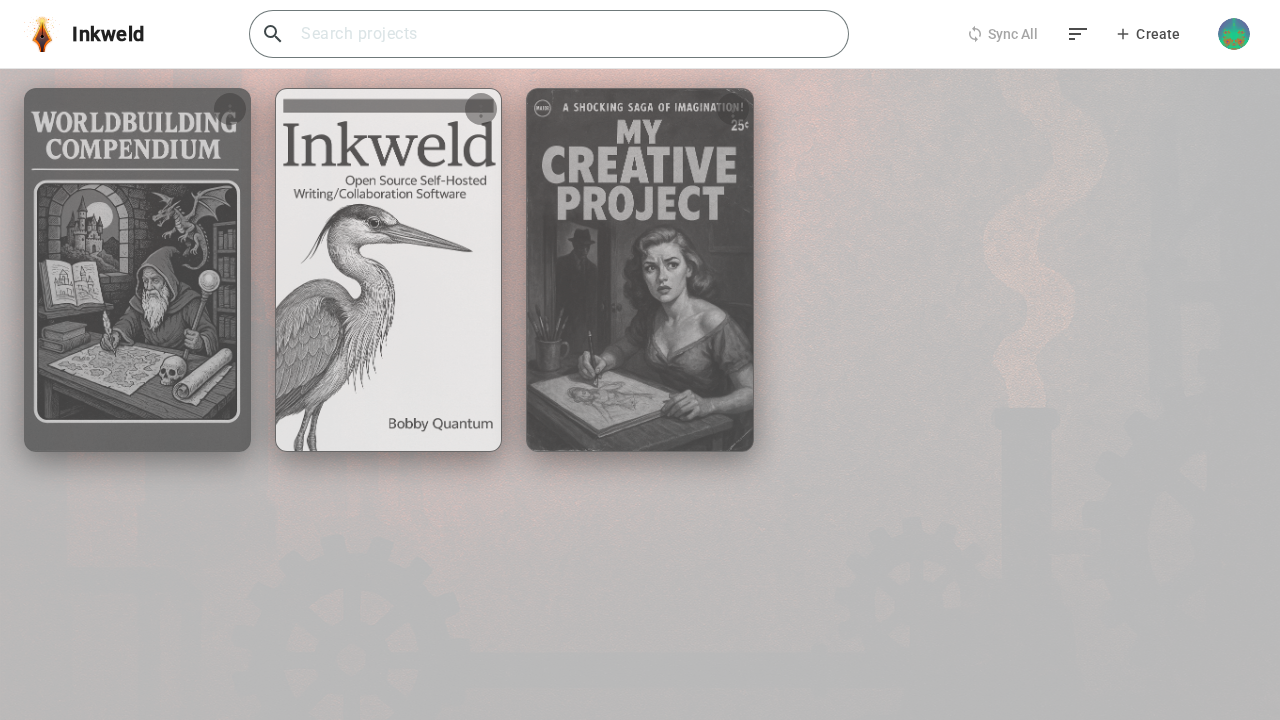
Project Covers
Each project appears as a book cover on the shelf:
- Custom covers — Upload your own cover image for a personalized look
- Generated covers — Projects without a custom cover display a styled placeholder with the project title
Collaboration Indicator
Projects shared with you by other users display a group icon badge, making it easy to distinguish your own projects from collaborative ones. Hover over the badge to see who shared the project with you.
Navigation
Top Bar
The top bar gives you quick access to:
- Search — Find projects by title (on a phone, tap the search icon first)
- Sync All — With a Server profile, brings every project you have downloaded to this device up to date with the server (see below)
- Sort — Choose how projects are ordered (see below)
- + Create — Opens a menu with New Project and Import Project. See Creating Your First Project and Import & Export
- User menu — Your avatar opens a menu with your profile, theme buttons, Settings, About Inkweld, Take a tour, and (with a Server profile) Messages and Log out
Sorting
Click the sort button (the icon with horizontal lines) and pick one of:
- Recently updated (the default)
- Recently created
- Title (A–Z)
Inkweld remembers your choice on this device. Projects you have pinned always stay at the top.
Pinning, Downloading and Deleting
Each project cover has a ⋮ menu (Project options):
- Pin to top / Unpin keeps favourite projects first, whatever the sort order. Pins are remembered on this device.
- Download to this device / Deactivate on this device (server and Cloud Sync profiles) — projects that live on a server or in your cloud storage appear as covers first and are downloaded in full only when you open them or choose Download. Deactivating removes the local copy from this device only; you can download it again at any time.
- Delete project (projects you own) — asks you to type the project's URL name (its slug) to confirm.
Sync All
With a Server profile, Sync All updates every project you have downloaded to this device. It first asks the server which documents have changed, so projects with nothing new are quick. While it runs the button shows a progress percentage; click it to cancel. The button is greyed out when you are offline or have no downloaded projects, and it is not available with a Browser or Cloud Sync profile.
Pending Invitations
When someone invites you to collaborate, a Pending Invitations section appears above your projects. Each invitation shows the project, who owns it and the role you were offered. Choose Accept to add the project to your bookshelf, or Decline to dismiss it. See Sharing & Collaborators.
Announcements and Messages
Announcements are notices from your server's administrators.
- Visitors who are not signed in see the latest announcements on the welcome page.
- Once you are signed in to a Server profile, they arrive in your Messages page. Choose Messages in the user menu; a badge shows how many are unread. Click Mark all as read at the top to clear the badge.
About
About Inkweld in the user menu shows the version you are running and a View Changelog button listing what changed in recent releases, plus the open-source licenses Inkweld uses.
Mobile View
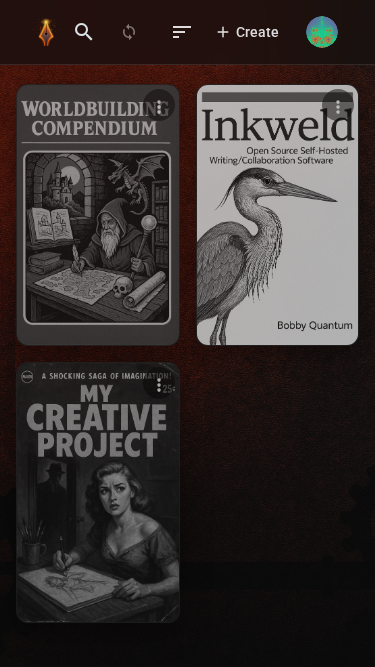
On a phone or small tablet the bookshelf uses the same grid of covers with fewer columns, and the search field becomes an icon in the top bar. Pull down on the list to refresh it.
Opening a Project
Click any project cover to open it. You'll be taken directly into the project's editor view where you can start writing.
What's Next?
Ready to start your first project? Head to Creating Your First Project to learn how.