Creating Your First Project
Ready to start writing? Creating a project in Inkweld is a two-step process: choose a template, then enter your project details.
Step 1: Start a New Project
From the bookshelf, click + Create in the top bar. A small menu opens with two choices:
- New Project starts the two-step flow described below.
- Import Project creates a project from an
.inkweld.ziparchive instead. See Import & Export.

Choose New Project. This opens the Create New Project page.
Step 2: Choose What You're Making
The first step asks What are you making? Pick a kind of project. It decides what your project contains on day one:
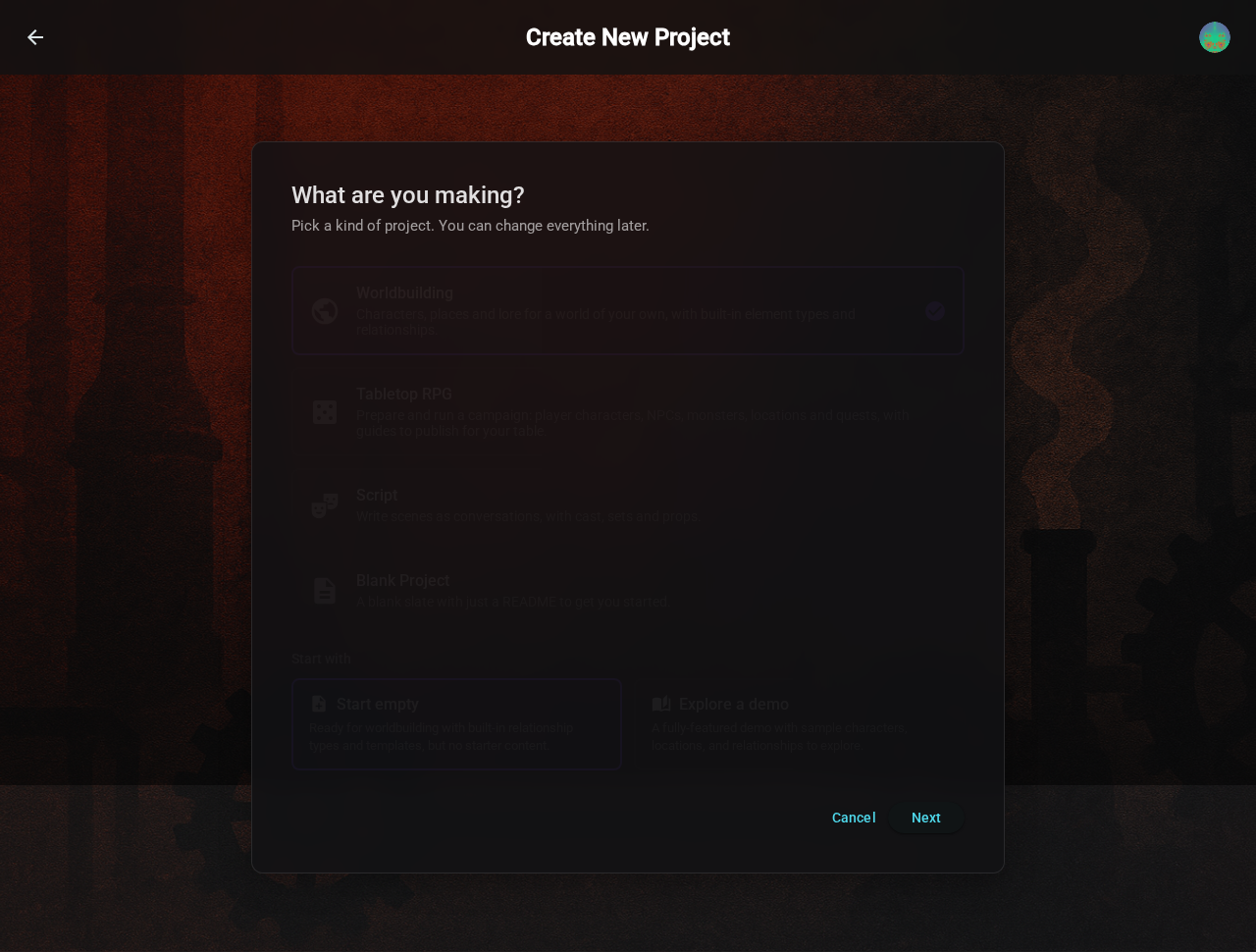
| Kind | Best For | What You Get |
|---|---|---|
| Worldbuilding | Most writers, and the default choice | The built-in element types (characters, locations and so on) and relationship types, set up and ready for your world |
| Tabletop RPG | Game masters preparing and running a campaign | Element types for player characters, NPCs, monsters, locations, factions, quests and magic items, folders for each part of the adventure, and a Game Master's Guide and Player's Guide ready to publish |
| Script | Screenplays and stage plays | Scenes written as conversations, with cast, sets and props |
| Blank Project | Complete flexibility | A blank slate with just a README document |
Most kinds then ask what to Start with:
- Start empty sets up the structure (element types, folders, publishing plans) with no content of your own.
- Explore a demo is the same project filled in, so you can see how it all fits together and change it. The Tabletop RPG demo is The Drowned Lantern, a complete illustrated adventure with a cover and both guides ready to publish.
If you're new to Inkweld, start with a demo of the kind of project you want to make. You can delete the project at any time.
Select a kind (and what to start with) and click Next.
Step 3: Enter Project Details
Now enter the basic information for your project:
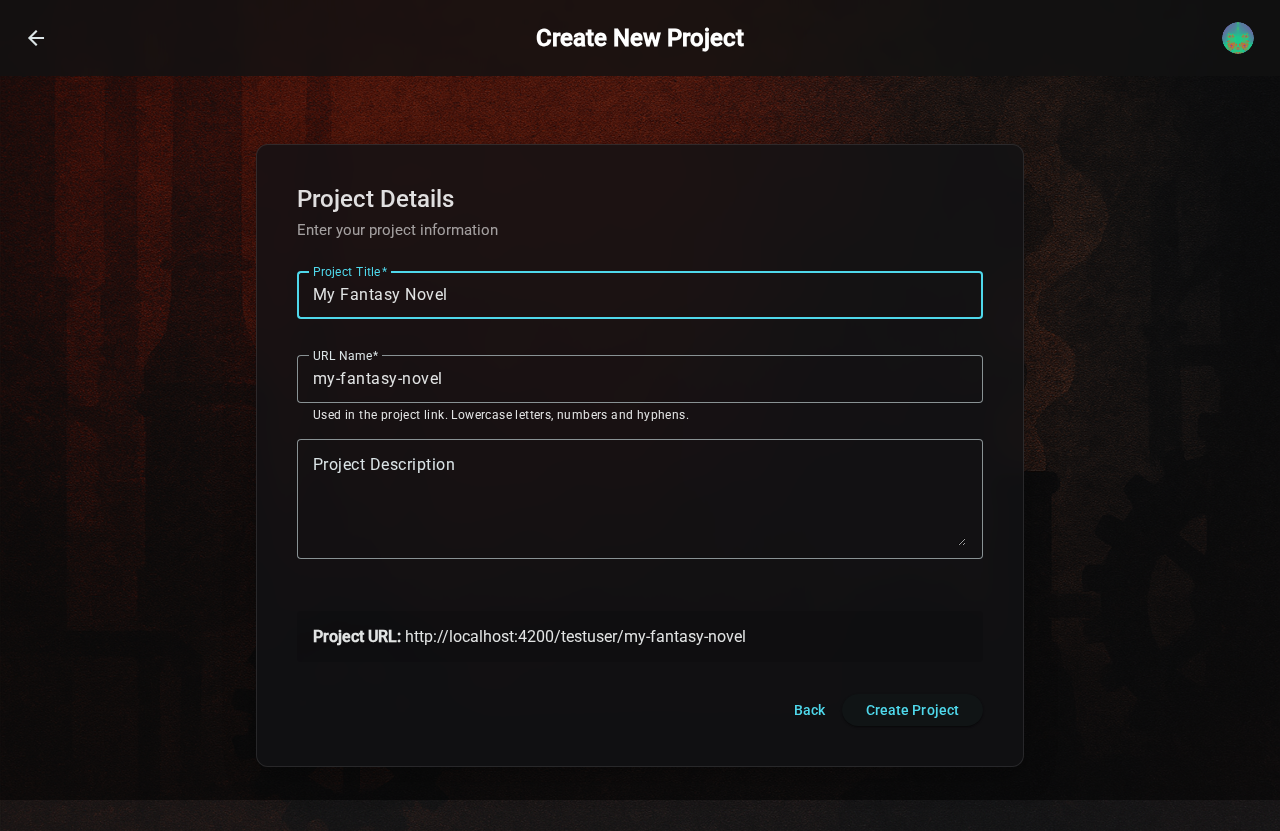
| Field | Description | Example |
|---|---|---|
| Project Title | Display name for your project | "The Dragon's Legacy" |
| URL Name | Used in the project link: lowercase letters, numbers and hyphens (filled in for you) | the-dragons-legacy |
| Project Description | Short summary or tagline | "An epic fantasy adventure" |
The URL Name is generated from your title as you type, and you can edit it. A Project URL preview underneath shows the finished link, for example inkweld.example.com/username/the-dragons-legacy.
Click Create Project when you're ready. Back returns you to the template choice.
You're In!
After creation, you're taken directly into your new project:
- Worldbuilding (Empty) and Empty Project: a clean workspace with a README, ready for your content
- Worldbuilding (Demo): example characters, locations and relationships you can explore and modify
What's Next?
Now that you have a project, learn about the Project Interface to understand how to navigate and work within your project.