AI Image Generation
AI image generation is an optional feature that must be enabled and configured by your instance administrator. If you don't see the Generate with AI option in the media tab or when setting images, this feature is not available on your instance.
Opening the Generator
You can generate images from:
- Media tab — Click Add media in the header, then Generate with AI
- Project cover — Click "Generate with AI" in the edit project dialog
- Worldbuilding images — Click "Generate with AI" in the identity panel
Generation Steps
The dialog has three steps:
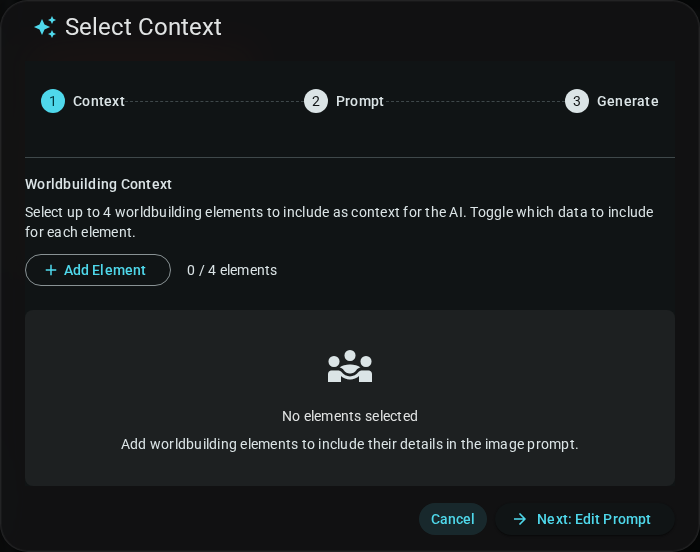
1. Context (Optional)
Select worldbuilding elements to include as context. For each element, toggle what to send to the AI:
- Image — Include the element's existing image
- Description — Include the description text
- Data — Include structured field data
This helps the AI understand your characters, locations, etc. You can skip this step if you prefer to write your prompt from scratch. Whatever you select here, together with your prompt, is sent to the AI provider your administrator has configured, so leave out anything you don't want shared.
2. Prompt
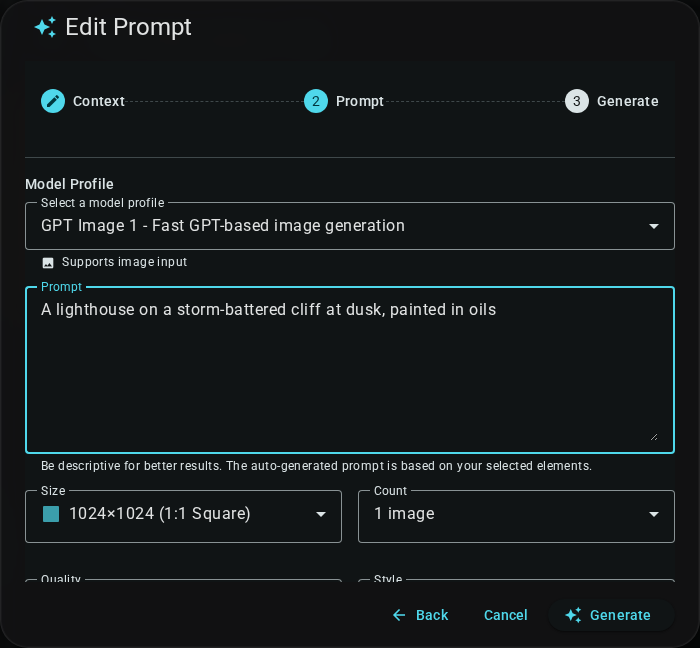
Configure your generation:
| Field | Description |
|---|---|
| Model Profile | Which AI model to use (configured by admin) |
| Prompt | What you want the image to show |
| Size | Image dimensions |
| Count | How many images to generate (1, 2, or 4) |
Additional options like quality, style, or negative prompts appear depending on the model profile.
3. Generate
Click Generate. Progress is shown in the dialog. You can close the dialog and continue working — the job runs in the background and completed images appear in your media library.
When generation completes, select an image from the results to use it.
Background Jobs
Active generation jobs appear in the media tab header. Generation typically takes 10-60 seconds depending on the model and options.
If It's Not Working
- No Generate with AI option: AI generation isn't enabled, or you are using a Browser profile. Contact your administrator.
- Generation failed: Check your connection, or the AI service may be temporarily unavailable.
- Poor results: Be more specific in your prompt. Results vary each generation.
AI image generation requires a server connection and is not available with a Browser profile.