Managing Documents
Documents are the core of your Inkweld project—they hold your chapters, scenes, notes, and prose. This guide covers how to work with documents in the project navigator.
Creating Documents
From the Create Button
At the bottom of the project tree there is a Create button (you need write access to the project to see it). It opens the Create New chooser:
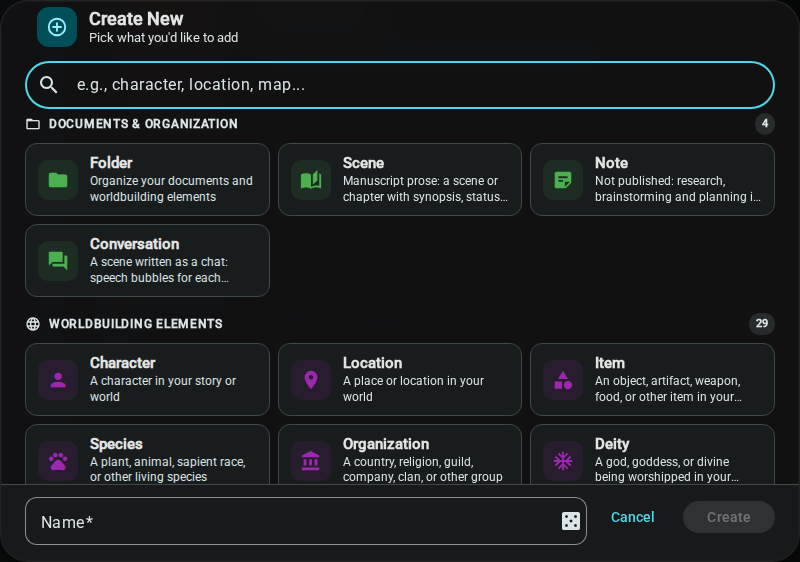
- Click the Create button
- Pick a type. The chooser groups them as Documents & Organization (Folder, Scene, Note), Visualization (Relationship Chart, Canvas, Map, Cover, Timeline) and Worldbuilding Elements (Character, Location and any custom templates). Use the search box to filter the list
- Type a name in the name field at the bottom
- Click the button at the bottom right, which is labelled after your choice (for example Create Scene), or press Enter
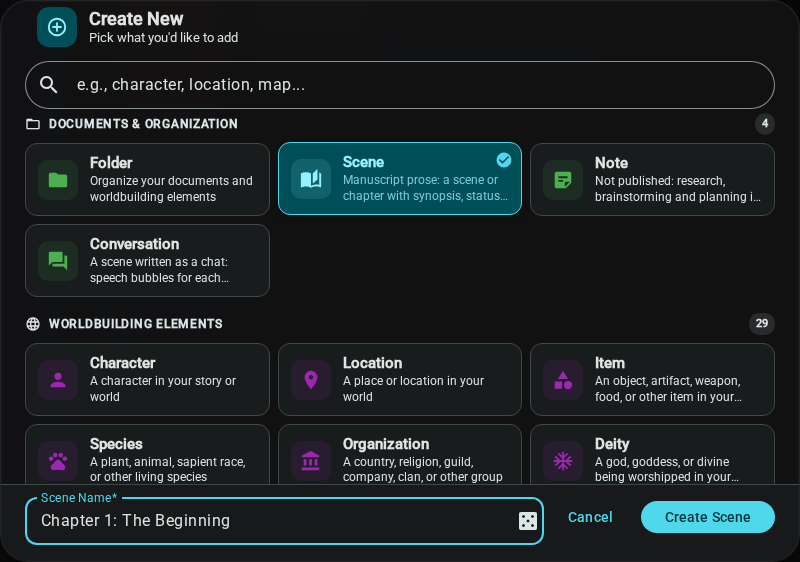
Canvas, Map and Cover ask a few setup questions (size, colours) before they are created. The new element opens automatically in a tab.
Where the new element lands depends on what you have open:
- If an element is selected in the tree (the one you are viewing), the new element is added right after it, in the same folder.
- If nothing is selected, it is added at the top level of the project.
From a Folder's Context Menu
To create something inside a specific folder:
- Right-click the folder in the project tree
- Select New Element
- Choose the element type and enter a name
- Click the Create button for that type
The new element is created inside that folder.
Document Types
Scenes and Notes
Prose documents are created as one of two kinds:
- Scenes — your manuscript, with a synopsis, draft status, word target and story date
- Notes — research, planning, front matter and anything else that is not part of the book
Both use the rich text editor. A scene also carries:
| Detail | What it holds |
|---|---|
| Status | Idea, Draft, Revised or Final |
| Synopsis | A short summary, shown on the corkboard and in the outline |
| Word target | How long the scene should be; the word count shows progress to it |
| Story date | When the scene happens, in any calendar installed in the project |
| POV, location | The character and place the scene is linked to |
Edit these from the chips above the scene's text, or click the tune button to open Scene details.
The role also decides publishing. When a folder in a publish plan is exported, the scenes inside it are included and the notes are skipped, and adding everything to a plan leaves notes out. To publish a note, add it to the plan by itself. Documents with no role (created before scenes existed, or by an import) behave like notes on the corkboard and outline, but are still published like scenes. To switch a document between the two, right-click it in the project tree and choose Convert to Scene or Convert to Note.
See Scenes, Corkboard & Outline for more, and The Editor for writing.
Worldbuilding Elements
Structured entries with customizable templates:
- Characters with profile fields
- Locations with details
- Items with properties
- Custom types you define
See Worldbuilding Elements for details on creating structured element types.
Opening Documents
Click any document in the project navigator to open it in a new tab. If the document is already open, clicking it will switch to that tab.
Folders open too: double-click one, or right-click it and choose Open Folder, to see its contents as a corkboard, outline, grid or list. See Scenes, Corkboard & Outline.
See Project Interface for more on working with tabs.
Editing Documents
Basic Editing
See The Editor for comprehensive editing instructions.
Quick reference:
- Click in the document to place your cursor
- Type to add text
- Use the toolbar for formatting
- Changes save automatically
Autosave
Documents save automatically:
- Every few seconds while typing
- When you switch documents
- When you leave the project
The small dot in the editor's status bar (bottom of the editor) shows whether the document is synced. If the connection drops, a bar appears at the bottom of the project tree.
Renaming Documents
From the Project Tree
- Right-click the document in the project tree
- Select Rename
- Enter the new name in the dialog
- Press Enter or click Rename
Click Cancel to leave the name as it was. The dialog stays open if you click outside it, so you cannot rename by accident.
From a Tab
You can also right-click an open element's tab and choose Rename. It opens the same dialog. You need write access to the project.
Moving Documents
Drag and Drop
The only way to move documents is drag and drop:
- Click and hold the document in the project tree
- Drag to the target folder
- Release to drop
- Confirm in the Move Item dialog, which shows where the item came from and where it will land. Click Move
You can also drag documents to reorder them within a folder, or rearrange a folder's cards on its corkboard.
When dragging, the target folder highlights to show where the document will be placed.
Tick Don't ask again — move items immediately in the Move Item dialog, or turn off Confirm element moves under User Settings → Project Tree, and moves happen straight away.
Deleting Documents
Delete a Document
- Right-click the document in the project tree
- Select Delete
- Confirm in the Confirm Delete dialog
Deleted documents are permanently removed. There is no recycle bin. Consider these precautions:
- Copy anything you may want back into another document first
- Move to an archive folder instead of deleting
- Export your project regularly as a backup
Document Snapshots
Snapshots keep earlier versions of a document so you can go back to them. Open the snapshot list with the Snapshots chip in the editor's status bar. Inkweld also takes automatic snapshots when you close a document's tab or leave the project, and you can switch that off under User Settings → Project.
See Snapshots & Version History for how to create and restore them.