Project Search
Project Search lets you find any word or phrase across every document in your project at once — handy when you can't remember which chapter a scene is in, or when you need to track down every mention of a character name.
Opening Project Search
| Platform | Shortcut |
|---|---|
| macOS | ⌘ + Shift + F |
| Windows | Ctrl + Shift + F |
| Linux | Ctrl + Shift + F |
You can also open it from the Search in Project button at the top of the project tree, or from the same button on the collapsed sidebar when the panel is hidden.
Browsing & Searching
Open Project Search without typing anything to browse all elements in your project. Start typing and results filter instantly as you type:
- Browse mode — with an empty query, all elements are listed so you can explore without knowing what to search for
- Case insensitive — searches are not case-sensitive
- Partial matches — "moon" matches "moonlight" and "Moonveil"
- Match count — the number of text matches per document is shown next to the title (hidden in browse mode)
- Breadcrumb path — the folder path to each result is shown beneath the document name
- Infinite scroll — results load in batches as you scroll down (or click Show more), so large projects stay responsive
Filters
Click the filter button (sliders icon) at the right of the search box to show the filter panel; click it again to hide it. When filters are active, a badge on the button shows how many.
| Filter | Description |
|---|---|
| Type | Limit results to Documents, Worldbuilding, Charts, Canvas or Timelines |
| Schema | Filter worldbuilding elements by their schema (e.g. Character, Location, Item). Shown when the project has any |
| Tags | Show only elements that have specific tags applied. Shown when the project has tags |
| Related to | Show only elements related to a specific element. Pick one from the list ("Any element" clears it) |
Filters combine with each other and with the text query — for example you can search for "castle" filtered to Location-type worldbuilding elements.
Click a chip in the panel to turn that filter on or off. To remove every filter at once, click Clear all filters at the bottom of the panel (it appears while a filter is active).
Result Snippets
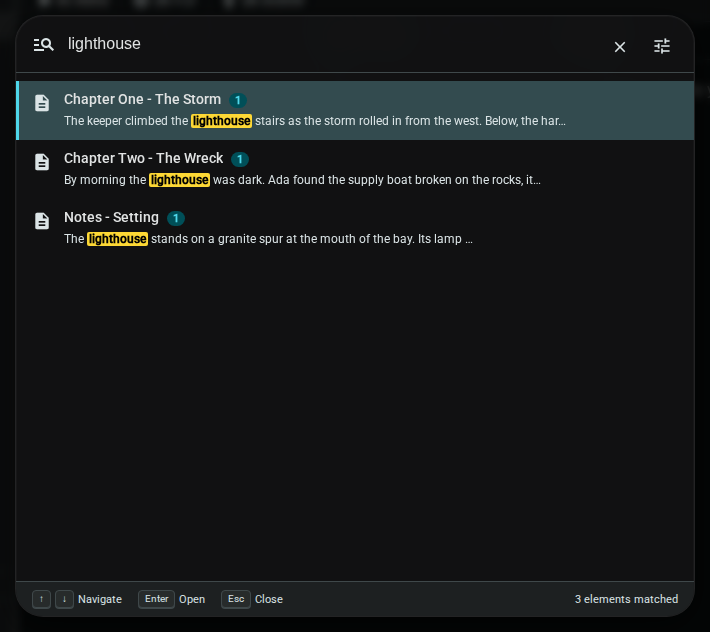
Each result shows up to three text snippets from the document, with the matching word or phrase highlighted. This gives you context to identify the right result without having to open each document.
Opening a Result
Click any result to immediately open that document and jump to the first match. The document opens in a new tab (or switches to it if already open).
Keyboard Navigation
| Key | Action |
|---|---|
↑ ↓ | Move selection between results |
Enter | Open the selected document |
Escape | Close Project Search |
Tips
- Open Project Search with no query to browse everything in your project — great for getting an overview
- Use filters to narrow large result sets — combining a tag filter with a schema filter is a fast way to find, say, all "Major" characters
- Use Project Search to audit consistency — search for a character's old name before and after a rename to make sure nothing was missed
- The match count badge on each result helps you prioritise — a document with 12 matches is more likely to be the one you want than one with 1
Once you've opened the right document, use Ctrl/Cmd + F to jump between individual matches within it.
Related: Quick Open · Find in Document