The Project Interface
When you open a project, you'll see Inkweld's project interface. Let's explore each area and how they work together.
Overview
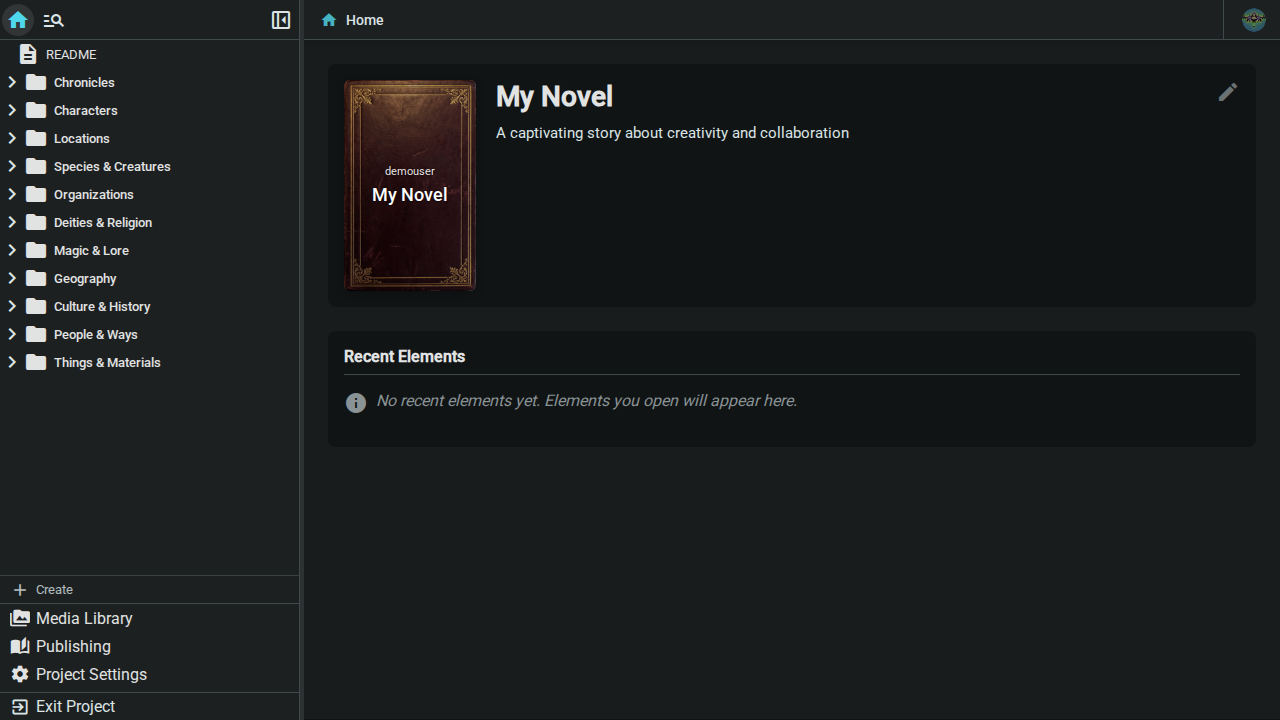
The interface is divided into three main areas:
- Tab Bar (top) — Navigate between views including the home tab and open documents
- Project Navigator (left) — Browse your project's structure
- Content Area (center) — View and edit content
The Tab Bar
The tab bar runs across the top of the interface and provides navigation between different views.
Home Tab
The first tab (with a home icon) takes you to the Project Home page, which displays:
- Project header — Cover image, title, and description (click it to edit, if you have write access)
- Pinned — Elements the owner has pinned (only shown when something is pinned)
- Recent Elements — Elements you've opened recently for quick access
Exporting, importing and publishing live elsewhere: see Bottom Navigation for Publishing and Project Settings.
Document Tabs
When you open documents, they appear as additional tabs. You can:
- Click a tab to switch between open documents
- Click the X on a tab to close it (the last remaining tab cannot be closed)
- Drag a tab left or right to reorder your open tabs
- Right-click a tab for more options
Tab Context Menu
Right-click any tab to access the context menu:
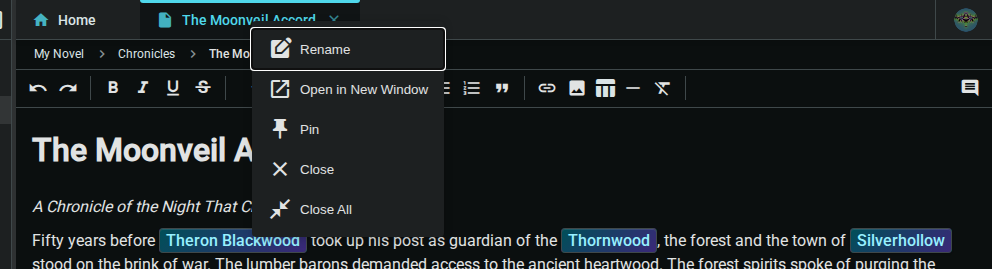
- Rename — Rename the element directly from the tab (appears on element tabs, not on Home, Media Library, Settings and other built-in tabs, and only if you have write access)
- Open in New Window — Open a document in its own browser window, so you can keep it beside another one. Both views stay in sync. Your browser may ask you to allow pop-ups. Only document tabs have this option
- Close — Close this tab
- Close to the Right — Close all tabs to the right of this one
- Close Others — Close all other tabs except this one
- Close All — Close all open tabs
- Pin / Unpin — Pin the element shown in this tab (project owner only; see Pinning)
Right Side of the Tab Bar
On the right side of the tab bar, you'll find:
- Presence indicator — Who else is in the project (when you are collaborating)
- User menu — Your account, settings, and sign out. See User Menu
There is no project-level "more" menu: export and import are in Project Settings, and project deletion is in the Danger Zone section there.
Project Navigator
The left sidebar shows all elements in your project as a collapsible tree.
Element Types
| Type | Description |
|---|---|
| Folder | Container for organizing other elements. Opens as a corkboard, outline, grid or list |
| Scene | Manuscript prose with a synopsis, status, word target and story date |
| Note | Prose that isn't part of the manuscript: research, planning, front matter |
| Worldbuilding | Structured entries using templates (characters, locations, items, etc.) |
| Relationship Chart | An interactive graph of how your elements connect |
| Canvas | An infinite drawing board for mood boards, storyboards and layouts |
| Map | A canvas with a background image and pins that link to your worldbuilding |
| Cover | A canvas that designs your project cover |
| Timeline | A chronological view with tracks, events and eras |
Scenes and notes both use the same editor; the difference is how they are treated on the corkboard and when publishing. See Scenes, Corkboard & Outline. For the visual types, see Canvas, Interactive Maps, Relationship Charts and Timeline.
All worldbuilding entries—characters, locations, items, and more—are built from customizable templates. You can modify existing templates or create entirely new ones with custom fields and icons. See Worldbuilding Elements for details.
Navigator Actions
- Click an element to open it in a tab
- Click a folder to expand or collapse it. Double-click it to open its folder view (or turn on Clicking a Folder Opens It to make a single click do both)
- Click the chevron next to a folder to expand or collapse it without opening it
- Drag and drop to reorganize elements. By default Inkweld asks you to confirm each move; see Confirm Element Moves
- Right-click for the context menu
Tree Context Menu
Right-click an element in the tree for:
- Open Document (documents and other items) or Open Folder (folders)
- New Element (folders only, with write access) — create something inside the folder
- Convert to Scene / Convert to Note (prose documents, with write access)
- Rename and Delete (with write access)
- Pin / Unpin (project owner only)
Pinning
Pin the elements you go back to all the time, such as an outline, a style sheet or a main character, so they are one click away.
- To pin, right-click an element in the project tree (or its tab) and choose Pin.
- To unpin, do the same and choose Unpin.
Pinned elements appear in a Pinned section above the project tree and in a Pinned column on the Home tab, in the order they were pinned. Click one to open it.
Pins belong to the project, not to you: every collaborator sees the same list, and it is kept when you reload or come back later. Only the project owner can pin and unpin. Neither section is shown while nothing is pinned.
Navigator Toolbar
At the top of the navigator, you'll find:
- Home — Return to the project home tab
- Search in Project — Open Project Search (
Ctrl/Cmd + Shift + F) - Collapse Sidebar — Shrink the navigator to a narrow icon strip (desktop)
Creating Elements
At the bottom of the project tree is the Create button (shown when you have write access). It adds a new element after the one you are viewing, or at the top level if nothing is selected. To create inside a folder, right-click the folder and choose New Element. See Managing Documents.
Bottom Navigation
At the bottom of the navigator, you'll find quick access to:
- Media Library — Manage project images and files
- Publishing — Your publish plans and exports
- Activity — Recent changes in the project (only when connected to an Inkweld server)
- Project Settings — Configure project options, tags, templates, and export or import the project
- Exit Project — Return to the bookshelf
User Menu
The user menu appears in the top-right corner of the interface. Click your avatar (or initials) to access:
- Messages — View system announcements (Server profile)
- Admin — Access the admin dashboard (if you're an administrator)
- Theme — Switch between light, dark and follow-system
- Settings — Configure application preferences (connection, display options)
- About
- Log out — Sign out of your account (Server profile)
If you use Browser or Cloud Sync, the menu also lets you switch or manage profiles and move up to a server; see Local-First Design.
Mobile Layout
On mobile devices, the interface adapts for touch:
- Hamburger menu opens the project navigator as a slide-out panel
- The navigator includes all navigation options in one place
- Swipe or tap the backdrop to close the panel
- The content area takes the full screen width