Scenes, Corkboard & Outline
Every prose document in a project is either a scene or a note. Scenes are your manuscript. Notes are everything else: research, brainstorming, front matter, to-do lists. Folders group scenes into chapters and parts, and each folder can be opened as a corkboard of index cards or as an outline table.
Scenes and Notes
When you create a document, the element type chooser offers Scene and Note. Both open in the same editor. The difference is what Inkweld does with them:
| Scene | Note | |
|---|---|---|
| Synopsis, status, word target, date | ✅ | — |
| POV character and location | ✅ | — |
| Numbered on the corkboard and outline | ✅ | — |
| Published by default | ✅ | — |
To change one into the other, right-click it in the project tree and choose Convert to Scene or Convert to Note. Documents created before scenes existed, or by an import, have no role. They behave like notes in the corkboard and outline but are still published.
The scene strip
A scene shows a strip of chips above its text:
- Status — Idea, Draft, Revised or Final. Click to change it.
- POV and Location — link the scene to a character and a place from your worldbuilding. These are relationships, so the character's page lists every scene told from their point of view.
- Story date — when the scene happens, in any calendar installed in the project.
- Words / target — the live word count, with a progress bar once you set a target.
The tune button (or clicking the date or word count) opens Scene details, where you edit the synopsis, status, word target and story date together.
Opening a Folder
A folder opens in its own tab, like a document. To open one:
- Double-click it in the project tree, or
- Right-click it and choose Open Folder.
A single click only expands or collapses the folder. If you would rather a click open it too, turn on Clicking a folder opens its corkboard as well as expanding it in User Settings → Project Tree.
The folder view has four layouts, chosen with the buttons in its top-right corner: Corkboard, Outline, Grid and List. A folder that contains scenes opens on the corkboard; other folders open on the grid. The layout you pick is remembered for that folder and shared with your collaborators.
Corkboard
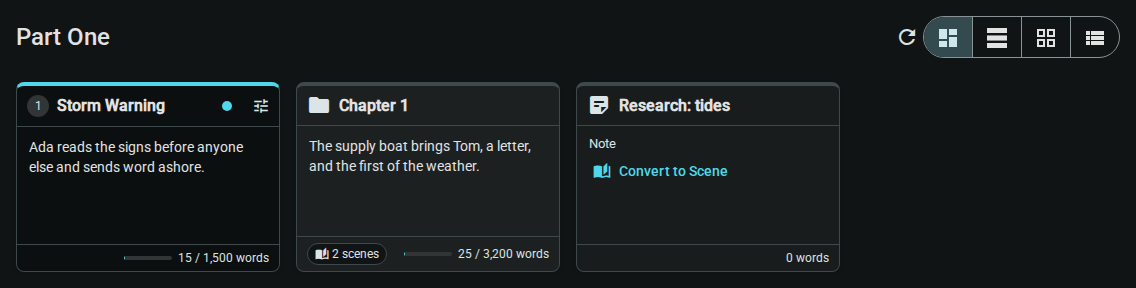
The corkboard shows one index card for each item directly inside the folder, in manuscript order.
- Scene cards are numbered and edged in the colour of their status. They show the synopsis, POV, location, story date and words written against the target.
- Folder cards (chapters, parts) show their own synopsis, how many scenes they contain and their combined word count.
- Note cards offer Convert to Scene. Other items, such as worldbuilding entries or canvases, appear as plain cards so the order stays complete.
Things you can do on a card:
- Click the title to open the item.
- Type in the synopsis — it is saved when you click away.
- Click the status dot to change the draft status.
- Click the tune button to open Scene details.
- Drag a card by its header to move it. The project tree updates to match, and a folder's contents travel with it.
Outline
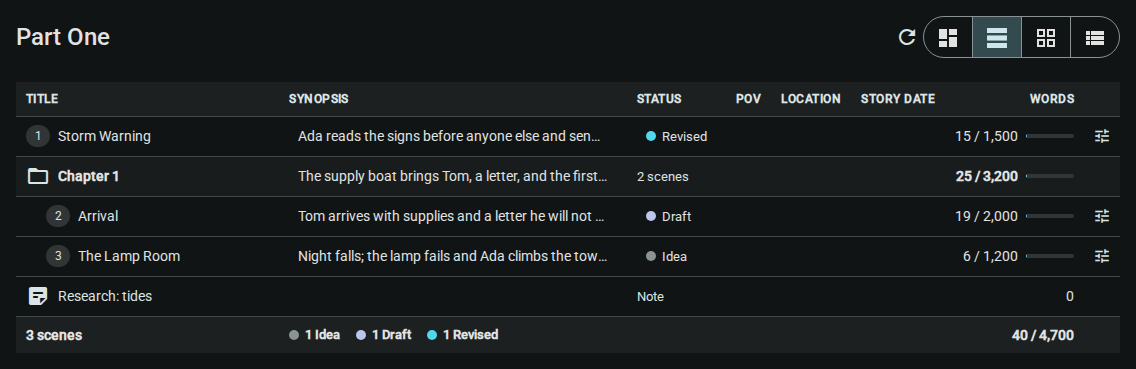
The outline lists every folder, scene and note inside the folder, at any depth, indented to show nesting. Its columns are Title, Synopsis, Status, POV, Location, Story date and Words.
- Synopses and statuses can be edited directly in the table.
- Folder rows show their scene count and the combined length of everything inside them.
- The bottom row totals every scene: how many there are, how many are at each status, and words written against the sum of the targets.
Word Counts
Word counts are read from the copy of each document on this device and refreshed whenever you open the corkboard or outline. Use the Refresh button next to the layout buttons after editing elsewhere, for example in another window. A dash (—) means the document has not been synced to this device yet.
Publishing a Folder
Add a folder to a publish plan and its scenes (and any documents that are neither scene nor note) are published in the order shown on the corkboard. Notes inside the folder are skipped unless you add them to the plan on their own. Rearranging scenes there changes the next export without touching the plan.