Customizing Output
Each publish plan has its own metadata, style, and content options. Two plans on the same project can produce a polished paperback PDF and a clean reflowable EPUB without stepping on each other.
Metadata
Metadata appears in the generated file's properties and, for EPUB, in e-reader displays. Open the Metadata section of your publish plan to edit it.
| Field | Purpose |
|---|---|
| Format | Which output format the plan produces |
| Book Title | Appears as the document/book title |
| Author | Your name or pen name |
| Language | Content language code (e.g., "en", "es") |
| Description | Summary or blurb (used in EPUB metadata) |
Style
The Style section controls what goes into the book and how it looks for HTML, Website, EPUB, and PDF exports. (Markdown ignores visual styling — it's a semantic format.)
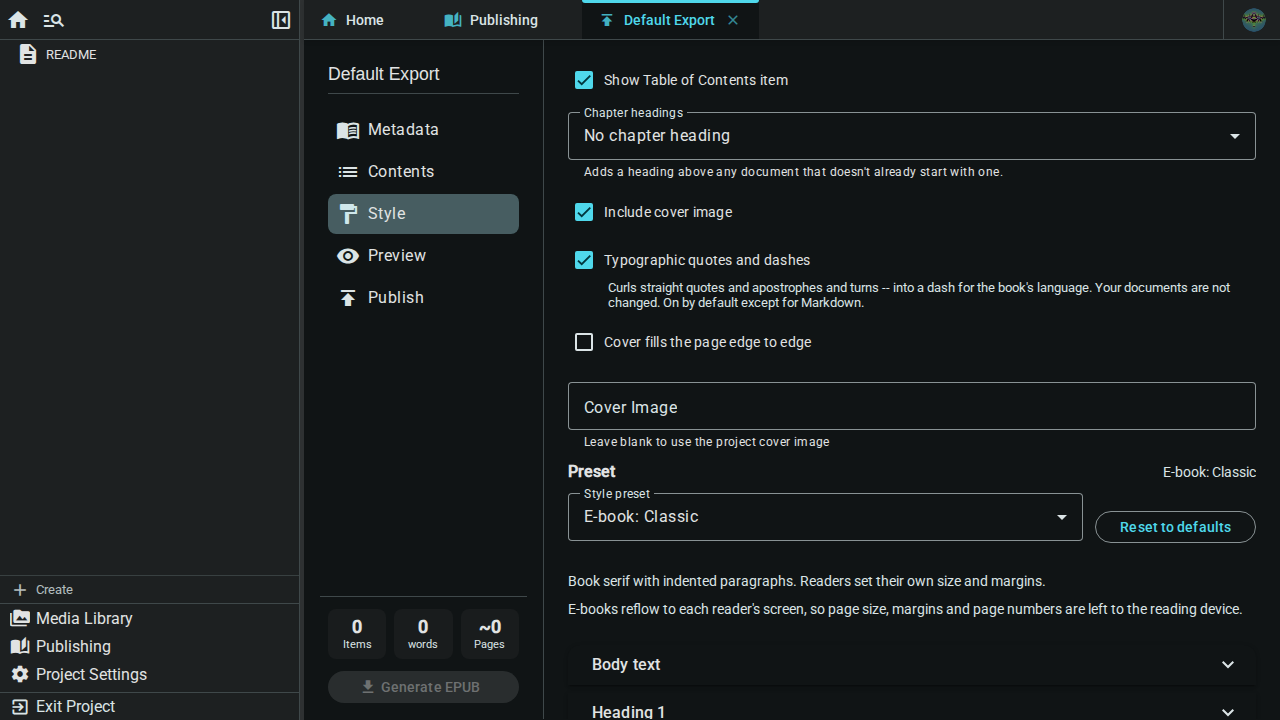
At the top of the Style section are a few options for the book as a whole, followed by the visual style editor.
Book options
| Option | Effect |
|---|---|
| Show Table of Contents item | Untick to hide the Table of contents item in Contents without removing it. Reader navigation (an e-reader's own contents menu) is unaffected |
| Chapter headings | Adds a heading above any document that doesn't already start with one: none, the document name, a number, "Chapter 1", or "Chapter 1: Name" |
| Number format | Shown when the chapter heading uses a number. Choose numerals (1, 2, 3), Roman numerals (I, II, III) or words (One, Two, Three) |
| Include cover image | Adds the cover image only. For a title page with the title and author, add Frontmatter > Title Page in Contents. Once ticked, a Cover Image field lets you point at a different image; leave it blank to use the project cover |
| Typographic quotes and dashes | Curls straight quotes and apostrophes and turns -- into a dash suited to the book's language. Your documents are not changed. On by default except for Markdown |
Presets
Start with a preset, then tweak anything you want. Eight presets ship with Inkweld:
| Preset | Best for |
|---|---|
| Manuscript | Submission-ready double-spaced manuscript (Courier, US Letter, 1" margins) |
| Paperback (6x9) | Trade paperback novel — classic serif body, centered chapters |
| E-book: Classic | Reflowable EPUB with a book serif and indented paragraphs |
| E-book: Modern | Reflowable EPUB with spaced, unindented paragraphs; easy on small screens |
| E-book: Large Text | Reflowable EPUB with larger type and looser line spacing as a starting size |
| Web Serial | Web-friendly sans-serif, left-aligned, generous spacing |
| Large Print | Accessibility-focused: 14pt body with looser spacing |
| Reference | Non-fiction, worldbuilding wiki, or technical writing |
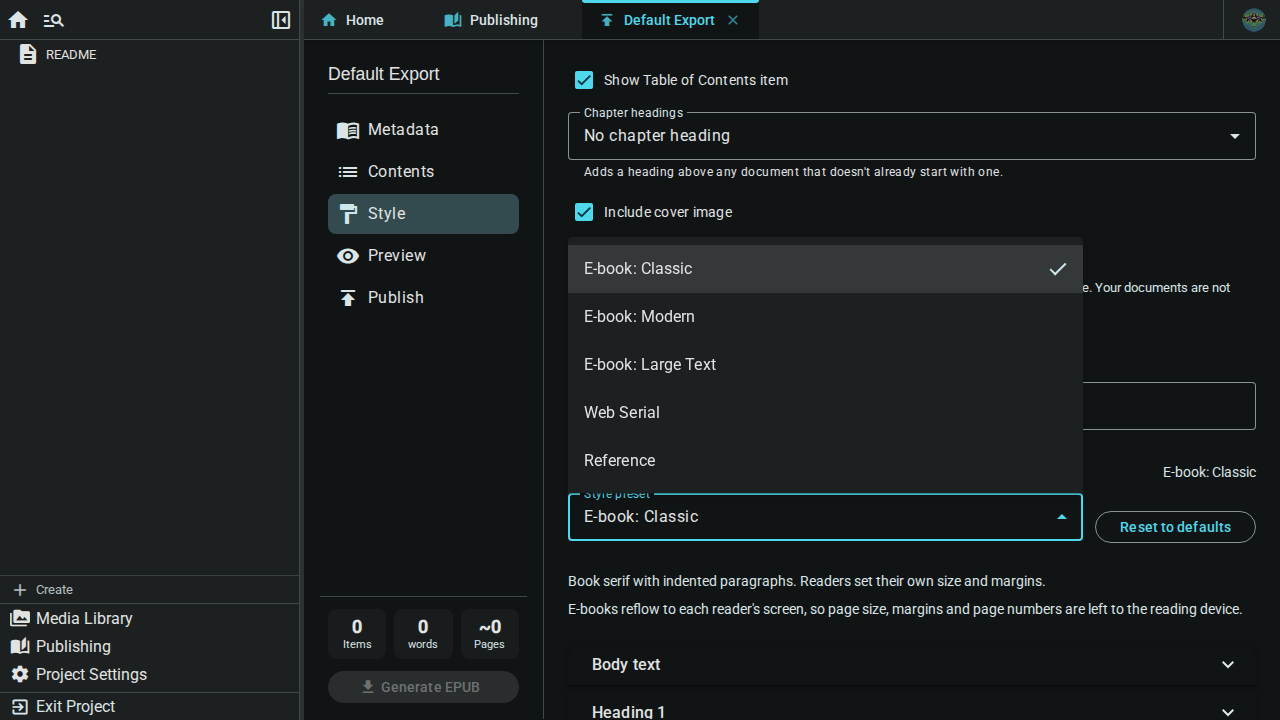
Pick a preset from the Style preset dropdown. The active preset is shown next to the Preset heading; if you change any individual setting the label switches to Custom so you always know whether your output matches a preset exactly.
When the plan's format is EPUB, the three print presets (Manuscript, Paperback, Large Print) are not offered, because an e-reader chooses its own page size and margins.
Page setup
For print-style output (PDF), the Page setup section controls the physical page:
- Page size: US Letter (8.5 x 11 in), US Trade (6 x 9 in), A4, A5, B5 or Pocket (4.25 x 6.87 in)
- Page numbers: None, Numeric (1, 2, 3) or Roman (i, ii, iii)
- Margin top, Margin bottom, Margin inside and Margin outside, in inches. Inside and outside are the binding and outer edges of a page
- Columns: One column or Two columns, for reference-book and game-module layouts. With two columns you can also set the Column gap in inches. In a PDF the title page, copyright page, dedication and table of contents stay full width, and chapter titles that start a new page span both columns. In single-file HTML output the same layout is used on wide screens (headings and the title page span both columns, worldbuilding entries are not split) and falls back to one column on narrow screens. EPUB, Markdown and the multi-page website ignore this setting
- Running header with chapter title: Repeats the chapter title at the top of each page
An EPUB is reflowable: it re-wraps to each reader's screen, so the Page setup section is hidden for EPUB and page size, margins and page numbers are left to the reading device.
Text sections
Below Page setup is a stack of collapsible sections. Each section controls one part of your book:
- Body text — font, size, weight, alignment, line height, color, first-line indent
- Heading 1 / 2 / 3 — chapter-level and sub-section headings
- Blockquote — pull quotes and indented quotations
- Chapter title — the chapter heading style, and whether each chapter starts on a new page
- Scene break — the style of the marker between scenes
- Worldbuilding — how worldbuilding elements look when included in the export

Every text section gives you the same controls. Leave a control on Inherit to use the value from Body text.
| Control | What it does |
|---|---|
| Font | One of the curated font families (serif, sans-serif, monospace) |
| Size (pt) | Point size — used directly for PDF, scaled for HTML/EPUB |
| Weight | light / normal / medium / semibold / bold |
| Style | normal / italic |
| Line height | Multiplier (1.0 = single, 1.5 = comfortable, 2.0 = double) |
| Alignment | left / center / right / justify |
| Color | Any hex color (e.g. #111111) |
| First-line indent (em) | Indent at the start of each paragraph; great for novels |
Chapter title & scene break
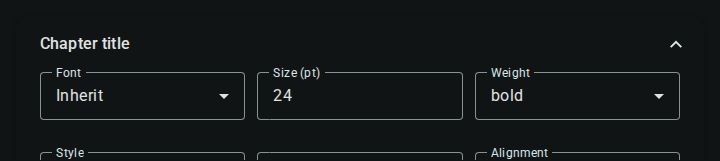
The Chapter title section adds a Page break before chapter checkbox. For PDF and EPUB this starts each chapter on a new page; for HTML it's rendered as a CSS page break (visible when the reader prints or saves to PDF from the browser).
The Scene break section only has the text controls above (font, size, color, alignment and so on) for the marker. The marker itself is * * *; there is no setting to change the symbols.
Worldbuilding entries
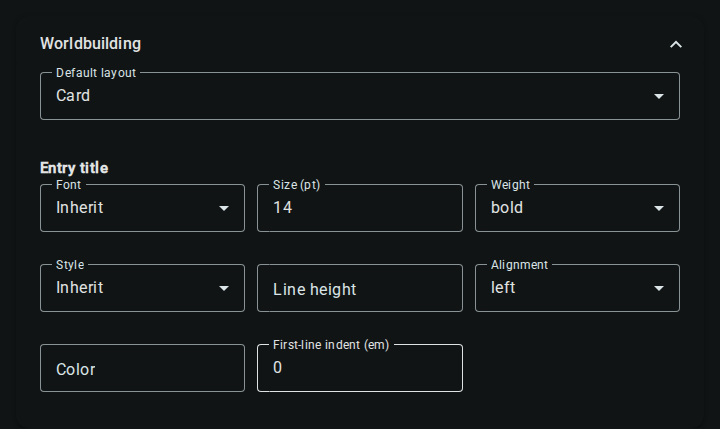
When you add a worldbuilding element (character, location, etc.) to a publish plan, Inkweld renders it as a structured entry — a title heading followed by each defined field as a labeled bullet. The Worldbuilding section has a Default layout (Card, Compact, Detail or Appendix) and an Entry title style for the heading. The field labels and values inherit from Body text.
This is what powers the Reference preset for wiki-style worldbuilding compendiums.
Reset
The Reset to defaults button next to the preset picker restores the visual style (everything in the sections above) to Inkweld's default look. For an EPUB plan it restores the E-book: Classic preset instead. It does not change your Contents, Metadata or book options, and there is no per-section reset.
Content order
Documents appear in your export in the order they're listed in the Contents section:
- Drag items to reorder
- Use the arrow buttons to move items up/down (or to the top/bottom)
- The Table of contents item (if added) is typically placed first
Cover images
For cover images to appear:
- Set a project cover in your project settings (see Project Covers)
- Tick Include cover image in the Style section of your publish plan
The cover is used in EPUB and PDF exports and on the landing page of a Website export. Single-file HTML shows it on its Title Page (add Frontmatter > Title Page); Markdown does not include one. An EPUB always gets a cover: if your project has none, Inkweld draws a default with your title and author. For a title page inside the book, add Frontmatter > Title Page in Contents.
What you can't customize (yet)
A few things still aren't exposed in the Style editor:
- Custom fonts — you can choose from the curated font tokens, but you can't upload your own typeface
- Raw CSS — there's no escape hatch to inject arbitrary stylesheet rules
- Scene break symbols — the marker is always
* * *; you can style it but not replace it
These may be added in future versions.