Project Settings
Project settings cover two things: your project's details (title, description and cover image), and the Project Settings tab, which holds export/import, sync, collaboration and the Danger Zone.
Editing Project Details
- Open your project. The Home tab shows a card with your cover, title and description.
- Click that card (its tooltip for screen readers is Edit project details; a pencil icon sits at its edge).
- Change the fields in the dialog and click Save.
You need write access to the project. If you can only view it, the card is not clickable.
Title and Description
- Title — the display name of your project, shown on the bookshelf and in exports. It is required.
- Description — an optional summary that helps you recognise the project.
Cover Image
Set a visual cover for your project. The cover appears on the bookshelf, on the Home tab and in exports. The dialog shows the current cover on the left and a Cover Image section on the right with these options:
Upload Image
- Click Upload Image
- Select a JPEG or PNG file from your device
- In the Crop Cover Image step, adjust the selection to the 1:1.6 cover ratio (1600×2560 pixels is recommended) and click Apply
- Click Save
Select from Library
- Click Select from Library
- Pick an image from your project's media library
- Crop it to the cover ratio and click Apply, then Save
Design on Canvas
Click Design on Canvas to build the cover as a drawing instead of using a finished image. Inkweld creates a canvas with a cover-size frame and links it to the project, making it a live cover: the cover image is re-rendered from the canvas whenever you change it, so you can keep refining the design.
When a live cover is in use, the dialog shows a Live cover card with:
- Open canvas — jumps to the canvas that drives the cover
- Update now — re-renders the cover immediately instead of waiting
- Unlink — stops following the canvas and keeps the current image as an ordinary cover. The canvas itself is not deleted.
Choosing Upload Image or Select from Library while a live cover is linked asks you to confirm with Unlink and continue.
Generate with AI
If AI image generation is enabled on your server, Generate with AI appears (greyed out, with a cloud-off icon, if the service is currently unreachable):
- Click Generate with AI
- Follow the prompts to create a cover
- The generated image becomes your project cover
See AI Image Generation for details.
Remove Cover
Click the delete (trash) button on the cover preview to remove the cover.
The Settings Tab
Click Project Settings at the bottom of the project sidebar to open the settings tab. Its sections are listed down the left (on a narrow screen, as expandable panels). Which ones you see depends on your access:
| Section | Who sees it |
|---|---|
| Actions (export / import) | Everyone |
| Templates, Relationships, Tags, Time Systems, Generators | Owner and writers |
| Sync | Everyone |
| Collaboration | Owner only |
| MCP | Owner only, unless AI is disabled |
| Danger Zone (rename URL, delete) | Owner only |
Sync
The Sync section shows how much of the project is stored where, and lets you repair this device's copy. Server storage and media sync only work with an Inkweld Server profile; with a Browser or Cloud Sync profile a note at the top says so.
Server Storage
How much space the project takes up on the server: Documents & data, Media, and the Total.
Media Library Sync
Images and other media are downloaded to each device separately from the text. This card compares the two copies:
| Row | Meaning |
|---|---|
| Server | Files and total size stored on the server |
| Local Cache | Files and total size stored in this browser |
| Needs Download | Files on the server that this browser does not have yet |
| Needs Upload | Files in this browser that never reached the server |
| Last Checked | When the comparison was last made |
- Refresh Status compares again.
- Download All fetches every missing file, so the media library and covers work offline. A progress bar shows how far it has got.
- Upload All sends files that were added while offline. It is only offered to people with write access.
Local Data
Documents and worldbuilding entries are cached in your browser so the project works offline. If a document will not sync or looks corrupted, Reset Local Data deletes this project's cached copy on this device and reloads it from the server. Other projects, other devices and other profiles on this device are not touched.
Anything you changed on this device that has not reached the server yet is lost. Only reset when the server holds the copy you want. The button is also shown for a Browser profile, where this device's copy is the only one: resetting there deletes the project's content for good.
MCP
The MCP section connects AI assistants and other tools to your project through the Model Context Protocol. It shows the server's MCP Endpoint URL with a copy button.
- Copy the URL
- Add it to your tool as a Streamable HTTP MCP server (Claude Code, Claude Desktop, Cursor, Windsurf, VS Code and others)
- The first time the tool connects, it opens your browser so you can sign in and choose which projects it may use
No API key is needed. See Connecting AI Tools for step-by-step instructions for each tool.
MCP needs an Inkweld Server profile: with a Browser or Cloud Sync profile the section explains that a server connection is required. If the server administrator has turned AI features off, the section is hidden.
Renaming a Project (Changing the URL)
You can change your project's URL slug (the part that appears in the browser address bar). This is useful if you want to give your project a new, more descriptive URL.
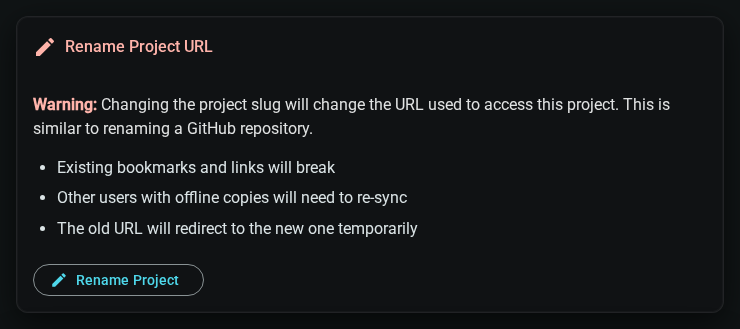
Changing the project URL has important consequences:
- Existing bookmarks and links will break — anyone who saved a link to the old URL will need the new one
- Collaborators with offline copies will need to re-sync — only the device you renamed from moves its offline copy; everyone else's old offline copy is not moved
- The old URL will temporarily redirect to the new one, but this is not permanent
To Rename Your Project
- Open your project and click Project Settings at the bottom of the sidebar
- Open the Danger Zone section
- Find the Rename Project URL card and click the Rename Project button
- Enter the New Project Slug (lowercase letters, numbers, and hyphens only)
- Click Rename Project to confirm
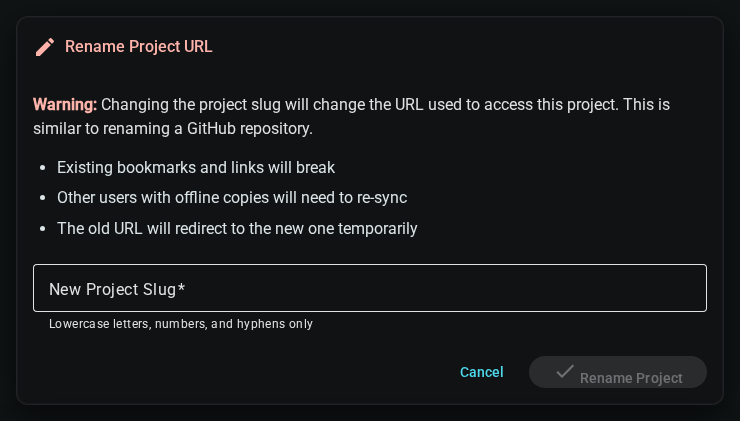
After renaming, you'll be automatically redirected to the new project URL. All your documents, worldbuilding elements, and media will be preserved.
What Gets Migrated
When you rename a project:
- ✅ All documents and their content
- ✅ All worldbuilding elements and relationships
- ✅ All media files (images, covers)
- ✅ All publish plans and exported files
- ✅ All snapshots and version history
- ✅ Collaborator access and permissions
Deleting a Project
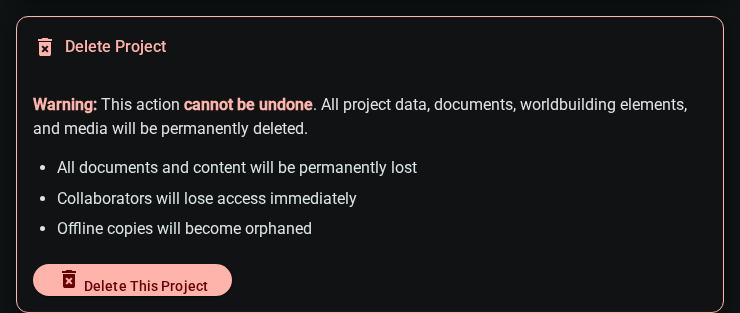
Deleting a project permanently removes all content. This cannot be undone.
Deleting is done from the Danger Zone section of the Project Settings tab, and only the project owner sees it:
- Open your project and click Project Settings at the bottom of the sidebar
- Open the Danger Zone section
- Find the Delete Project card and click Delete This Project
- In the confirmation dialog, type the project's slug (the URL name shown in the dialog) exactly as shown
- Click Delete
You can also delete a project from the bookshelf with the cover's ⋮ menu, Delete project, which asks for the same confirmation.
You've completed the Inkweld User Guide! For additional help:
- Visit the main Documentation
- Check Troubleshooting