Canvas
The Canvas element type gives you a freeform infinite canvas for visual worldbuilding. Draw maps, create diagrams, add images, drop pins on locations, trace regions, annotate with text — all organized into named layers, with optional frames that define the page size and export crops.
For canvases that are primarily maps — a background image with clickable pins and regions that open your elements — see Interactive Maps, which builds on everything here.
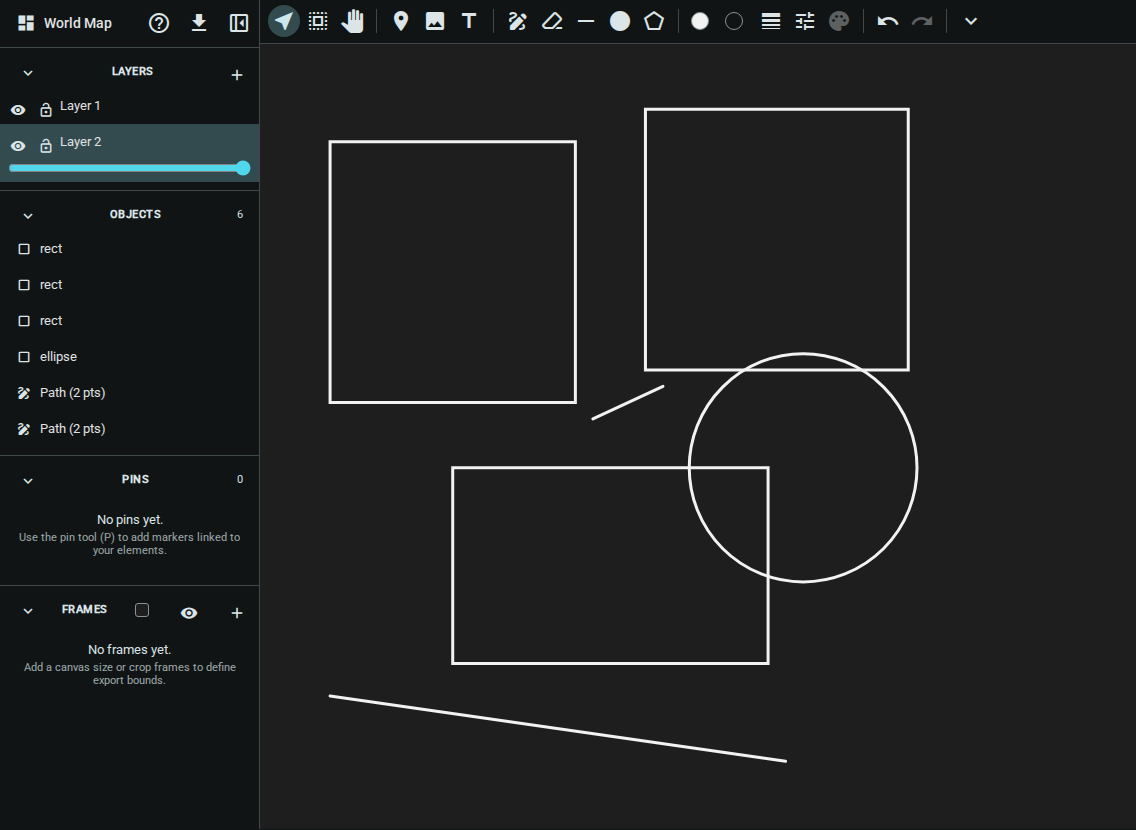
Creating a Canvas
- Right-click in the Project Tree sidebar (or click the + button)
- Under Visualization, select Canvas — or Map for a canvas pre-configured for interactive maps
- Give it a name (e.g., "World Map", "Battle Plan", "City Layout")
- Set up the page: choose a canvas size (or keep it infinite), a page colour and a default ink colour. The colours start out matching your current theme — a dark page with light ink if you're in dark mode — and the Light page / Dark page buttons swap between the two.
The canvas opens immediately in its own project tab. A Map is an ordinary canvas underneath: it starts with a "Base map" layer and a map icon, and you can use every canvas feature on it.
Page Colour
A drawing's colours are fixed, so the page they sit on has to be fixed too. The page colour belongs to the canvas, not to your theme: every collaborator sees the same page whatever theme they use, exports (PNG, SVG and the live project cover) are painted on it, and switching between light and dark mode never changes how the drawing looks. Only the pasteboard around the page follows the theme.
Click the colour swatch in the Frames header to change the page colour or the default ink later. The default ink is the colour the pen starts with each time you open the canvas.
The Interface
| Area | Purpose |
|---|---|
| Sidebar (left) | Four collapsible sections: Layers, Objects, Pins, Frames |
| Toolbar (top) | Tool selection, brush settings, view/edit mode, zoom controls |
| Stage (center) | The infinite drawing surface |
The ? button in the sidebar header replays a short guided tour of the canvas and map features; on desktop it is also offered automatically the first time you open a canvas (it is not offered automatically on phones and other small screens, but you can still replay it with the button).
Each sidebar section has a chevron in its header — click the header to collapse or expand it. The whole sidebar can also be collapsed to give the stage more room: click the collapse button in the sidebar header, or use the expand button on the left strip to bring it back. Both choices are remembered between sessions.
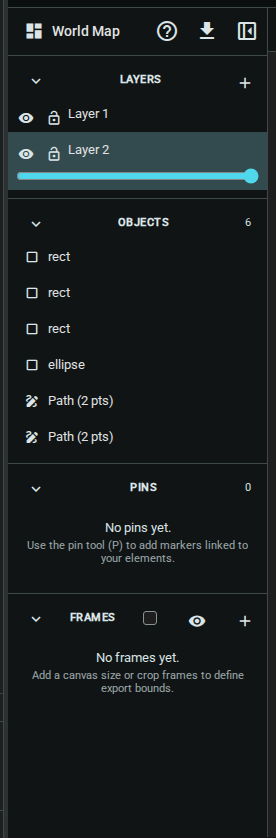
Layers
Layers let you organize objects independently, similar to illustration software. Objects on higher layers appear in front of objects on lower layers.
Managing Layers
| Action | How |
|---|---|
| Add a layer | Click the + button in the Layers header |
| Select a layer | Click its row in the layers list |
| Rename a layer | Click ⋮ → Rename |
| Duplicate a layer | Click ⋮ → Duplicate |
| Reorder a layer | Click ⋮ → Move up / Move down |
| Add a background image | Click ⋮ → Add background image… (see Interactive Maps) |
| Delete a layer | Click ⋮ → Delete (requires at least 2 layers) |
Layer Visibility, Lock & Opacity
Each layer row has quick controls:
- Eye (👁) — hide or show all objects on that layer
- Lock (🔒) — prevent accidental edits to objects on that layer
- Opacity — fade the whole layer, useful for blending one map style over another
Objects on hidden layers are not exported. Pins are the exception: they live on their own overlay above every layer (see Pins), so hiding or deleting a layer never hides its pins.
Toolbar

Navigation Tools
| Tool | Shortcut | Description |
|---|---|---|
| Select | V | Click to select and move objects |
| Rectangle Select | R | Drag to select multiple objects |
| Pan | H | Click and drag to scroll the canvas |
Creation Tools
Creation tools are enabled when a layer is active. Objects are added to whichever layer is currently selected.
| Tool | Shortcut | Description |
|---|---|---|
| Pin | P | Drop a location marker, optionally linked to an element |
| Image | — | Open the media library to place an image |
| Text | T | Click on the canvas to add a text label |
| Freehand Draw | D | Draw freely with the pointer |
| Eraser | E | Drag across strokes and objects to remove them (pins are never erased) |
| Line | L | Click and drag to draw a straight line |
| Shape | S | Draw a shape — click the arrow to pick Rectangle, Ellipse, Arrow, or Line |
| Region pen | G | Click to place vertices one at a time; close the loop to make a polygon |
Drawing tools work on top of whatever is already on the canvas, so you can annotate directly over a placed map without selecting it by mistake.
Using the Region Pen
The region pen is made for tracing irregular areas — a kingdom's border, a forest, a city district:
- Press
Gand click to place the first vertex - Keep clicking to add vertices; a dashed preview follows your pointer
- Close the loop by clicking the first vertex again, or by clicking the last vertex a second time
- Press
Escat any point to abandon the loop
The result is an ordinary polygon shape: it takes the current stroke and fill settings, can be recoloured later, and can be linked to an element to become a clickable region.
Modifier Keys
| Modifier | Effect |
|---|---|
| Shift + line | Snap the line to 15° increments |
| Shift + shape | Constrain to a perfect square or circle |
| Alt + shape | Draw the shape outward from the point you started at |
| Space (held) | Pan the canvas without leaving the current tool |
| Esc | Cancel the stroke in progress and return to the Select tool |
Brush Settings
Four toolbar controls set what the next stroke or shape will look like. Your choices are remembered between sessions.
| Control | Description |
|---|---|
| Stroke color | Colour of lines, outlines, and freehand ink |
| Fill color | Interior colour for shapes, with a No fill toggle for outline-only shapes |
| Stroke width | Six presets plus a slider — [ and ] step through the presets while you draw |
| Brush options | Pressure, smoothing, opacity, and eraser size |
The colour choosers are the same ones used for worldbuilding appearance: pick from the swatches, or expand Custom for a full picker. The fill chooser also has a Gradient mode — choose linear or radial, set the angle, and add colour stops to fill shapes with a gradient. Gradients survive export to SVG.
With an object selected, picking a colour recolours it immediately — no dialog needed.
Pressure & speed makes freehand strokes vary in width: a stylus uses real pen pressure, and a mouse or trackpad uses drawing speed, so quick strokes taper the way ink does. Turn it off for a uniform line. Smoothing rounds off the corners in a hand-drawn line; opacity is useful for highlighter-style annotation over a map.
Other Controls
| Control | Description |
|---|---|
| Palette | Edit the fill and stroke colors of the selected object |
| Undo / Redo | Step backwards and forwards through your edits |
| Zoom In / Out | Step the zoom level up or down |
| Fit All | Zoom to show all objects and frames on the canvas |
| Zoom label | Shows the current zoom percentage |
On narrow windows the toolbar moves its least-used groups into a More tools menu rather than wrapping.
Navigating the Stage
| Gesture | Result |
|---|---|
| Scroll / two-finger swipe | Pan the canvas |
| Shift + scroll | Pan horizontally |
| Ctrl/⌘ + scroll, or pinch | Zoom around the pointer |
| Hold Space and drag | Pan from any tool |
On a tablet, pinch to zoom and drag with two fingers to pan. While a stylus is in use, resting your hand on the screen won't start a second stroke. On a phone the sidebar becomes a drawer: open it from the strip on the left and tap outside it to close. There is no right-click on touch, so press and hold on the stage with the Select tool to open the context menu, and tap a linked shape to see the element it points at.
Objects Panel
The Objects section in the sidebar lists the drawn objects on the active layer — images, text, strokes, and shapes. Click an object row to select it on the stage. Pins are listed separately in the Pins section.
When a layer has no objects, a hint tells you how to add your first one.
Working with Images
The Image tool opens your project's media library so you can place reference art, maps, or textures directly on the canvas. Once placed, images can be moved, resized, and sent to different layers like any other object.
Common uses:
- Place a scanned or hand-drawn map, mark it as a background, then annotate on layers above (see Interactive Maps)
- Place character portraits next to location sketches
- Add reference images for architecture, terrain, or props
Images placed on the canvas are references to your media library — they don't duplicate the file.
Pins
The Pin tool (P) drops a location marker on the canvas. When you place one, a small dialog asks for a label, a colour, and optionally an element to link it to.
Pins are annotations rather than artwork: they sit on their own overlay above every layer, so they stay visible whatever layers you hide, and deleting a layer never deletes its pins. The Pins section of the sidebar lists every pin on the canvas; click one to select it on the stage.
Pins linked to an element open it on double-click (double-tap on touch). Right-click a pin for Edit pin…, Open linked element, and Unlink element. If the linked element is later deleted, the pin stays but shows "Linked element no longer exists". See Interactive Maps for the full workflow.
Frames
Frames give an infinite canvas a page. The Frames section of the sidebar holds two kinds:
- Canvas size — at most one per canvas; the page bounds. Whole-canvas exports use it when it exists.
- Crop frames — as many as you like; named rectangles for exporting the same canvas at different crops.
Frames draw as a labelled outline on the stage. They don't dim or hide anything, and they're not exported themselves. The canvas size is also where the page colour is painted: inside it is the page, outside is the theme-coloured pasteboard. Without a canvas size, the whole infinite canvas is the page.
Adding and Editing Frames
| Action | How |
|---|---|
| Set canvas size | Click + in the Frames header → Set canvas size, then pick a preset |
| Add a crop frame | Click + → Add frame, then pick a preset |
| Presets | Cover (book cover, 1000×1600), HD (1920×1080), Square, A4, or Custom… for exact dimensions |
| Move or resize | Select the frame in the list, then drag it or its handles on the stage |
| Edit exact values | Click ⋮ → Edit frame… to set name, width, height, and position |
| Change kind | Click ⋮ → Make canvas size / Make crop frame |
| Show or hide | Click the eye on a frame row, or the eye in the Frames header to hide all |
Frame as Project Cover
A frame can drive the project cover in two ways:
- Use as live cover… — links the frame to the project cover. From then on the cover image shown on the dashboard, in the sidebar and in EPUB/website exports is rendered from this frame, and it updates automatically a few seconds after you stop editing (and when the canvas is closed). The linked frame shows a book icon in the Frames list; hover it to see whether the cover is up to date, updating, or failed. Choose Unlink live cover to stop — the last rendered image stays as a normal cover.
- Set as project cover… — a one-off render. The frame's contents replace the cover once and nothing stays linked.
Frames using the Cover preset are already the right aspect ratio. If the project already has a cover you'll be asked to confirm the replacement.
New element → Cover creates a canvas with a cover-size frame already linked as the live cover. The same shortcut is available as Design on Canvas in the project's edit dialog.
Live covers render in the browser, so images placed from other websites (rather than your media library) can't be included — the browser refuses to export a canvas that contains them. Keep cover artwork in the media library.
Context Menu
Right-click anywhere on the canvas (or on a selected object) to open the context menu:
| Action | Description |
|---|---|
| Cut / Copy / Paste | Standard clipboard operations |
| Duplicate | Duplicate the selected object in place |
| Delete | Remove the selected object |
| Bring / Send (front, back…) | Change the object's order within its layer |
| Send to Layer | Move the selected object to a different layer |
| Set as background / Detach from background | Toggle whether an image is a map backdrop (images only) |
| Link to element… / Unlink element | Turn a shape into a clickable region, or remove the link |
| Edit pin… | Change a pin's label, colour, or linked element |
| Open linked element | Open the element a pin or region points at |
Standard keyboard shortcuts also work: Ctrl+C / Cmd+C to copy, Ctrl+X / Cmd+X to cut, Ctrl+V / Cmd+V to paste, Ctrl+D / Cmd+D to duplicate, and Delete to remove.
Undo & Redo
Ctrl+Z / Cmd+Z steps back through your canvas edits, and Ctrl+Shift+Z /
Cmd+Shift+Z (or Ctrl+Y) steps forward again. The toolbar has buttons for
both. A continuous gesture — dragging an object, sweeping the eraser across
several strokes — counts as a single step, so one undo takes back the whole
action rather than unpicking it piece by piece.
Undo restores objects and their positions. If you delete a linked pin or region and undo, the pin comes back with its link, but the relationship entry shown on the element's Relationships tab is not recreated — re-link it if you need the backlink.
Exporting
Click the download button in the sidebar header (or the collapsed sidebar strip) and choose what to export:
- Whole canvas — fitted around all visible content, or exactly the canvas-size frame when one exists:
- Export as PNG — standard 2× resolution raster image
- Export as PNG (High-res) — 3× resolution for print or high-DPI displays
- Export as SVG — scalable vector format; ideal for further editing in tools like Inkscape or Illustrator (images from the media library are replaced with a placeholder)
- A frame — each frame in the list has its own Export PNG, Export PNG (2x), and Export SVG, cropped exactly to the frame's rectangle. The same options are available from the frame's ⋮ menu.
Only visible layers are included. Visible pins are always included, and frame outlines and selection handles never are. Shape gradients are preserved in SVG.
Tips
- Start with one layer and add more only when you need to separate elements (e.g., put terrain on one layer and annotations on another)
- Lock finished layers to avoid accidentally moving objects you're happy with
- Hide layers during export to produce cleaner output — e.g., hide a grid or reference layer before exporting
- Set a canvas size early if the canvas is destined for print or a cover, so you can see the page while you draw
- Use Pan mode (
H) to navigate the canvas without risk of accidentally moving objects - Freehand draw feels best with a stylus, which drives stroke width from real pen pressure; for crisp lines use the Line tool instead
- Turn fill off when drawing shapes over a map so the artwork underneath stays visible
- Lower the opacity and pick a bright stroke colour for highlighter-style annotation
- The canvas is saved automatically as you work — no explicit save step is needed
- Two people can draw on the same canvas at once: each stroke syncs on its own, so nobody's work is overwritten by somebody else's