Element References
Element references let you create links between your story content. Use the @ symbol to reference any element from anywhere in your project.
What Are Element References?
Element references are inline links to other elements:
- Type
@to trigger the reference popup - Search for any element in your project
- Insert a styled link to that element
- Navigate between connected content
Quick Start
- Type
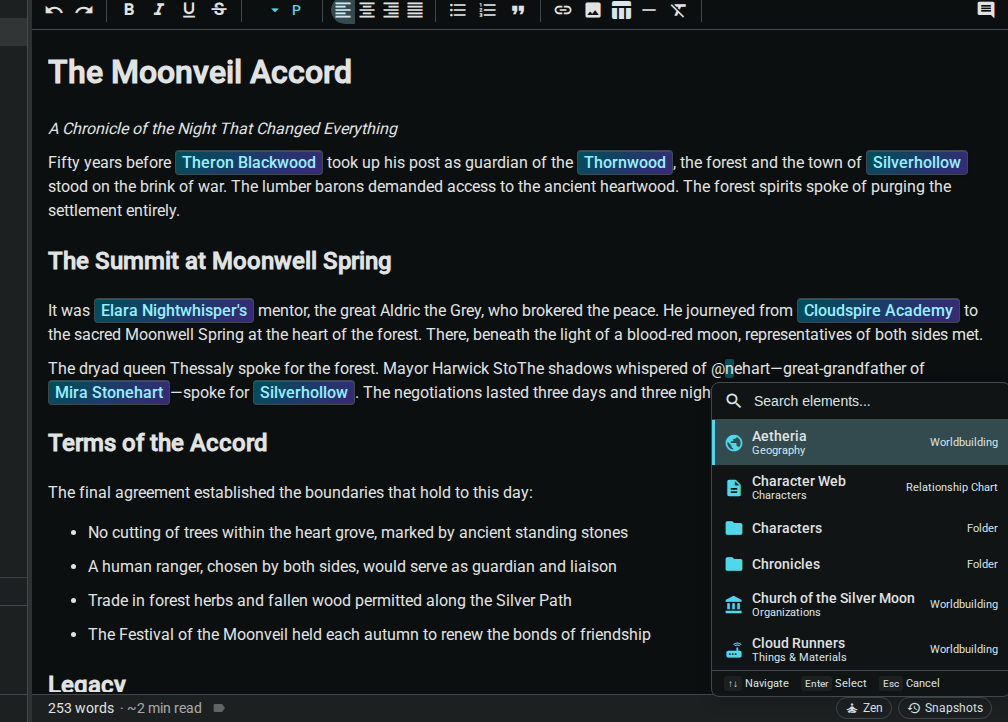
@in a prose document - Start typing to search for an element
- Select from the dropdown or press Enter
- A styled link is inserted into your text
Why Use Element References?
Track Element Appearances
References stay visible inline in the source document, and referenced worldbuilding elements show incoming reference backlinks in their Relationships section:
- Inline references: Elements the current document links to
- Backlinks: Other documents and elements that reference a worldbuilding entry
Navigate Your World
Click any element reference to jump directly to that element's page. Build a web of interconnected worldbuilding.
Maintain Consistency
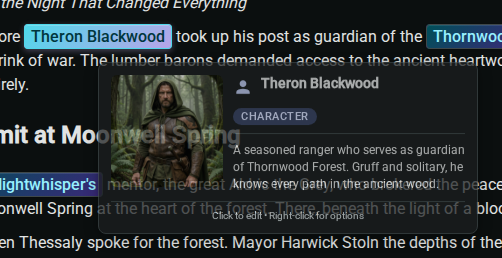
When you hover over an element reference, a tooltip shows key information about that element. Quickly verify details without leaving your current document.
Using the @ Popup
Triggering the Popup
Type @ anywhere in the text of a prose document, scene or note. The popup appears immediately with suggestions.
The @ popup only works in the rich‑text editor used for documents, scenes and notes. It is not available in worldbuilding fields. To connect worldbuilding elements to each other, use relationships instead.
Searching
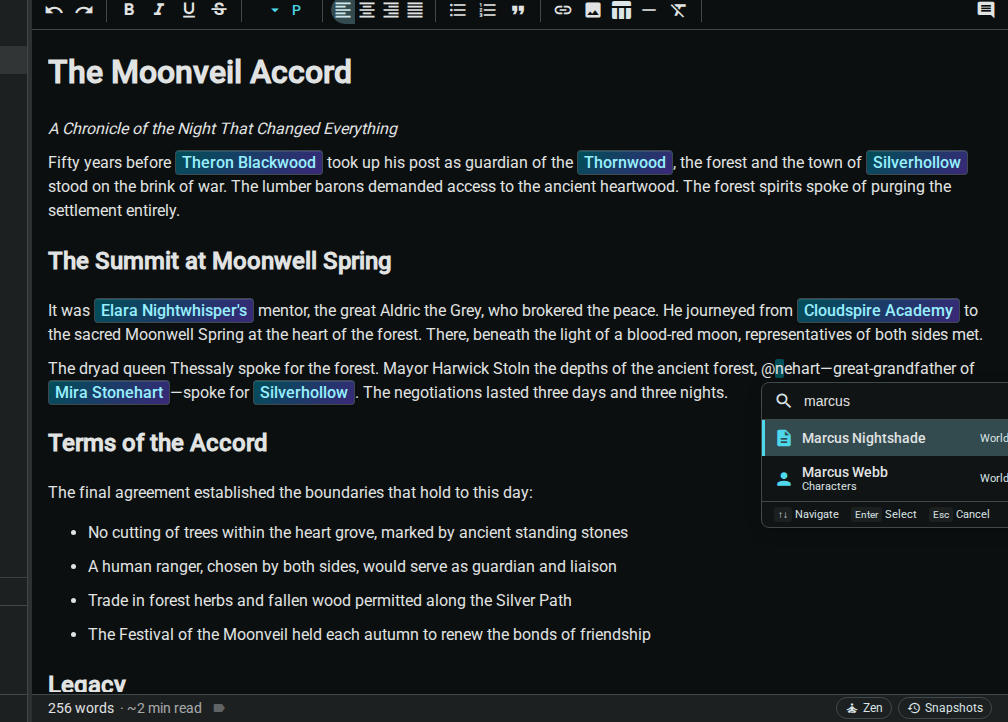
The popup lists up to eight elements by default. Start typing to filter:
- Type
@Elenato find elements named Elena - Type
@Tavernto find elements containing "Tavern" - Results whose name matches best come first: an exact match, then names that start with what you typed, then names that merely contain it. Worldbuilding elements and documents get a small boost over folders, and ties are listed alphabetically. Recently opened elements are not favoured.
Keyboard Navigation
| Key | Action |
|---|---|
↑ ↓ | Navigate through results |
Enter | Select highlighted result |
Escape | Close popup without selecting |
You can also click a result to select it. Tab does not select a result.
Element Type Icons
Each result shows an icon, the element's name, the folder path it lives in, and its type. The icon depends on the element:
| Icon | Element Type |
|---|---|
| Document (page) icon | Document |
| Folder icon | Folder |
| Template's own icon | Worldbuilding element (the icon of its template, e.g. a character) |
An element you gave a custom icon shows that icon instead.
Inserting References
Basic Insertion
- Type
@and search - Select an element
- The reference appears as styled text
- Continue typing normally
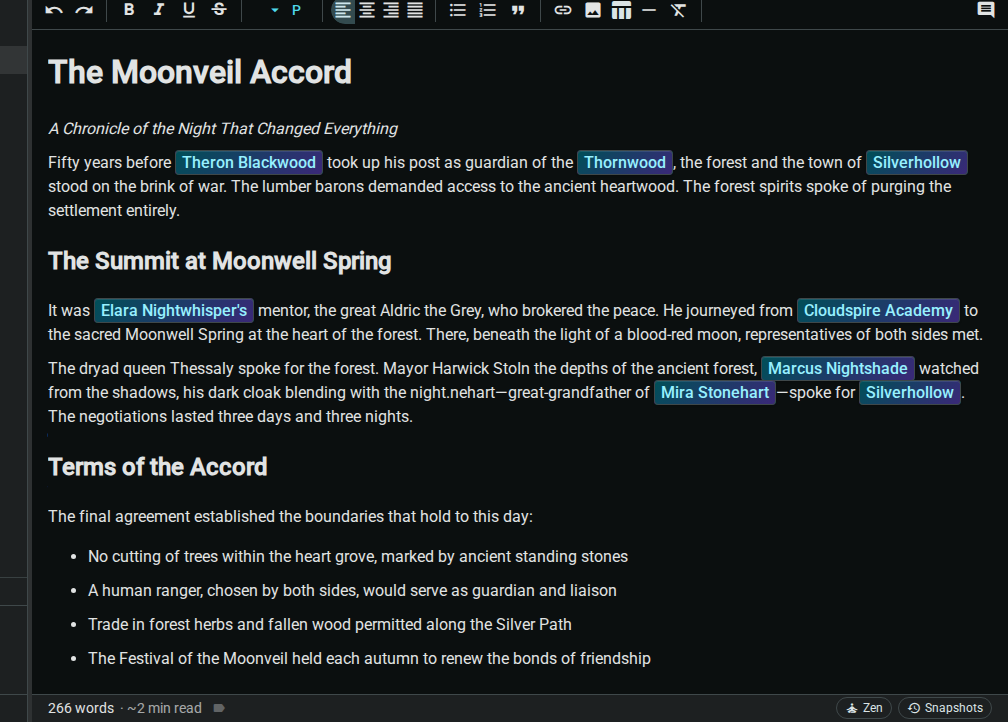
Reference Display
References appear as:
- Distinctly styled (usually colored/highlighted)
- Clickable links
- Show element name by default
Editing References
Change Display Text
By default, the element's name is shown. To use custom text:
- Right-click the element reference
- Select Edit display text
- Enter your preferred text
- Click Save or press Enter
Click Reset to original in the same box to go back to the element's name.
Example: Change @Elena Blackwood to display as just Elena or the sorceress.
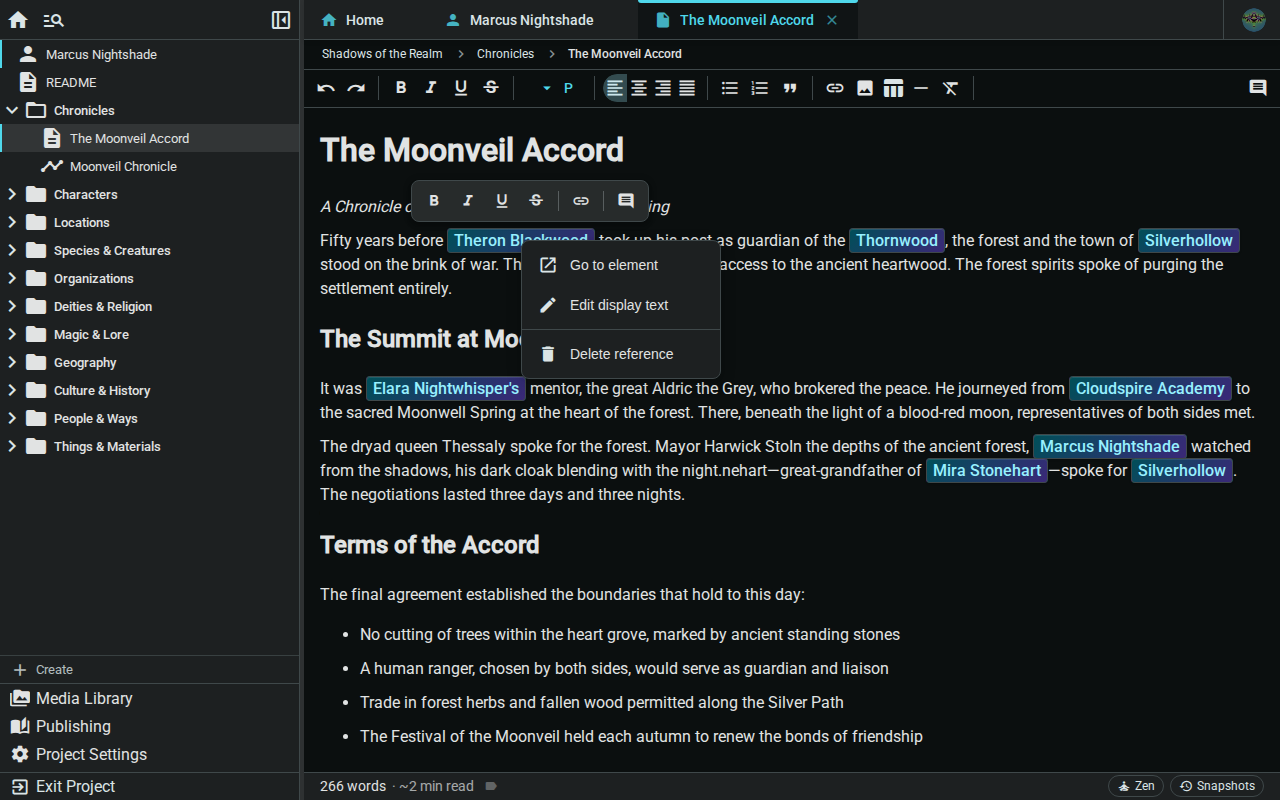
The right‑click menu has three actions:
| Action | What it does |
|---|---|
| Go to element | Opens the referenced element |
| Edit display text | Changes the words shown in your text |
| Delete reference | Removes the reference from the document |
Remove a Reference
To remove an element reference:
- Place your cursor at the reference
- Use Backspace or Delete
- The reference is removed like any text
Or:
- Select the reference
- Press Delete or type replacement text
Viewing References
In the Relationships Section
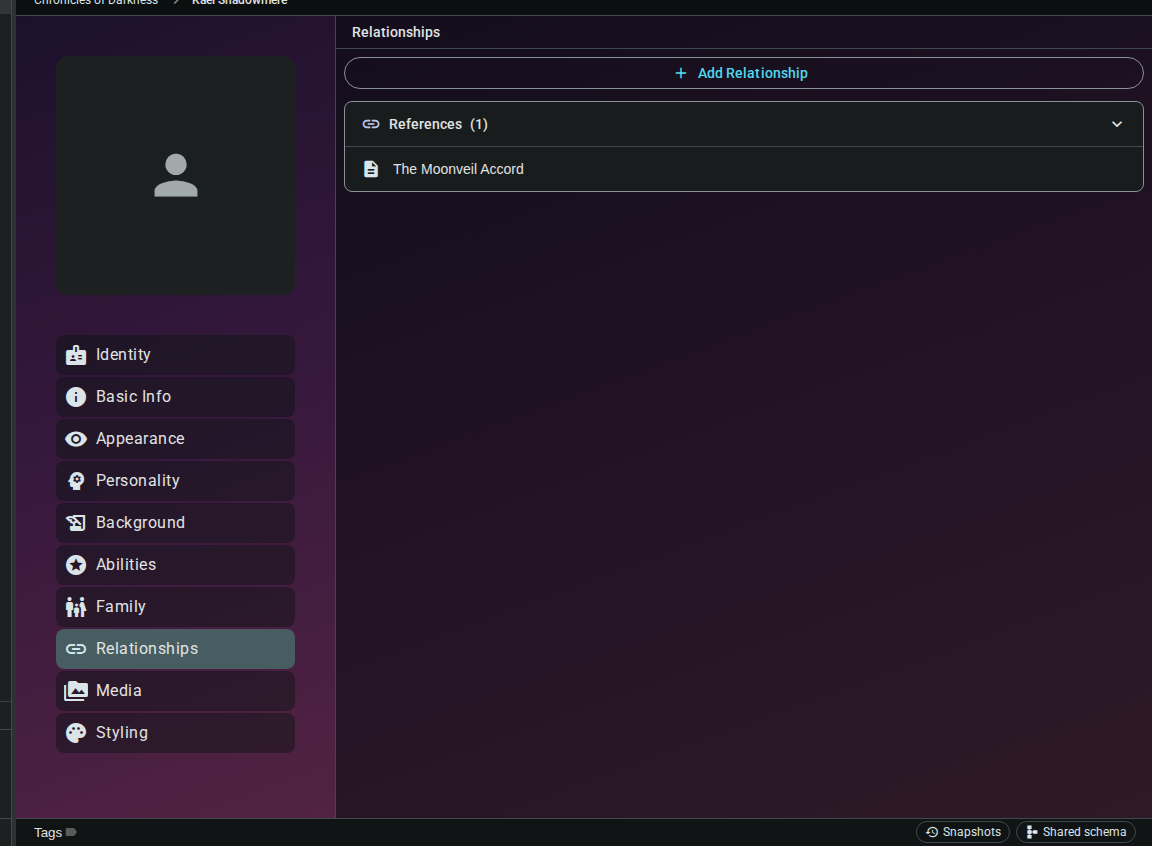
Every @ mention is also a backlink. Open the referenced worldbuilding element and select Relationships in its section list: the References group lists each document that mentions the element, with a count. Click a document to open it.
Reference Counts
See how many times an element is referenced:
- On element cards in worldbuilding views
- In the Relationships section
Tooltip Preview
Hover over a reference to see:
- Element type and name
- Brief description or summary
- Quick facts from the profile