Elements & Templates
Inkweld's worldbuilding system is built around elements—structured entries that you create to represent anything in your story world. Characters, locations, factions, items, creatures, magic systems—they're all elements, and you define their structure using templates.
Projects created from the Worldbuilding (Empty) or Worldbuilding (Demo) project template start with a set of built-in templates covering 29 common element types. See Element Types for the full list — clone and customize them, or design your own from scratch. A project created from the Empty Project template has no worldbuilding templates at all, so you'll need to create your own (see Creating a Template) before you can add worldbuilding elements.
What Are Elements?
Elements are worldbuilding entries with structured data. Unlike free-form documents, elements have:
- Fields organized into tabs
- Consistent structure defined by a template
- Relationships to other elements
- Backlinks showing where they're referenced
Think of elements as database entries for your story world, but with the flexibility to define exactly what data you want to track.
What Are Templates?
Templates define the structure of elements:
- What fields to capture (name, description, stats, etc.)
- How to organize fields into tabs
- What field types to use (text, select, number, relationship, etc.)
Every element uses a template. You can create as many templates as your story needs.
When you create an element, it takes its own copy of the template's structure. Editing a template later doesn't silently rearrange elements you've already filled in — each element picks up template changes when you choose to update it, and you can tweak a single element's structure without touching the template. See Per-Element Schemas.
Quick Start
Creating an Element
- Right-click on a folder in your project tree
- Select New Element
- In the Create New dialog, pick the type you want under Worldbuilding Elements (use the search box to filter, e.g. "character")
- Enter the element's name
- Click the Create button, which is labelled after the type you chose (for example Create Character)
The element opens with structured fields to fill in.
The Create New dialog only lists templates your project already has. To add a new element type, create a template first in Project Settings → Templates (see below), then it will appear in the dialog.
Creating a Template
There are two ways to create a new template:
Option 1: Create from Scratch
- Open your project
- Go to Project Settings → Templates
- Click the New Template button
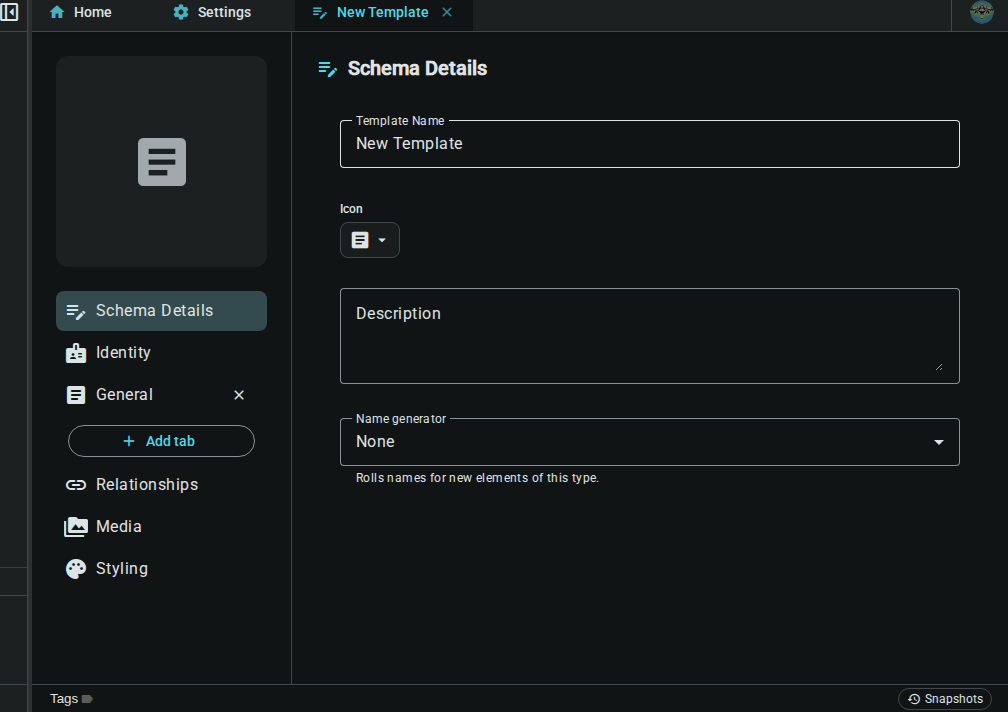
- The template editor opens with a blank starter template
- Define your fields and tabs
- Changes save automatically as you go

Option 2: Clone an Existing Template
If you want to start from an existing template (like the built-in Character or Location templates):
- Go to Project Settings → Templates
- Find the template you want to base yours on
- Click the Clone button (copy icon) on that template's row
- A copy is created that you can rename and customize

Cloning is great when you want to create a variation of an existing template. For completely new element types, use New Template.
Understanding Templates
The Templates Tab
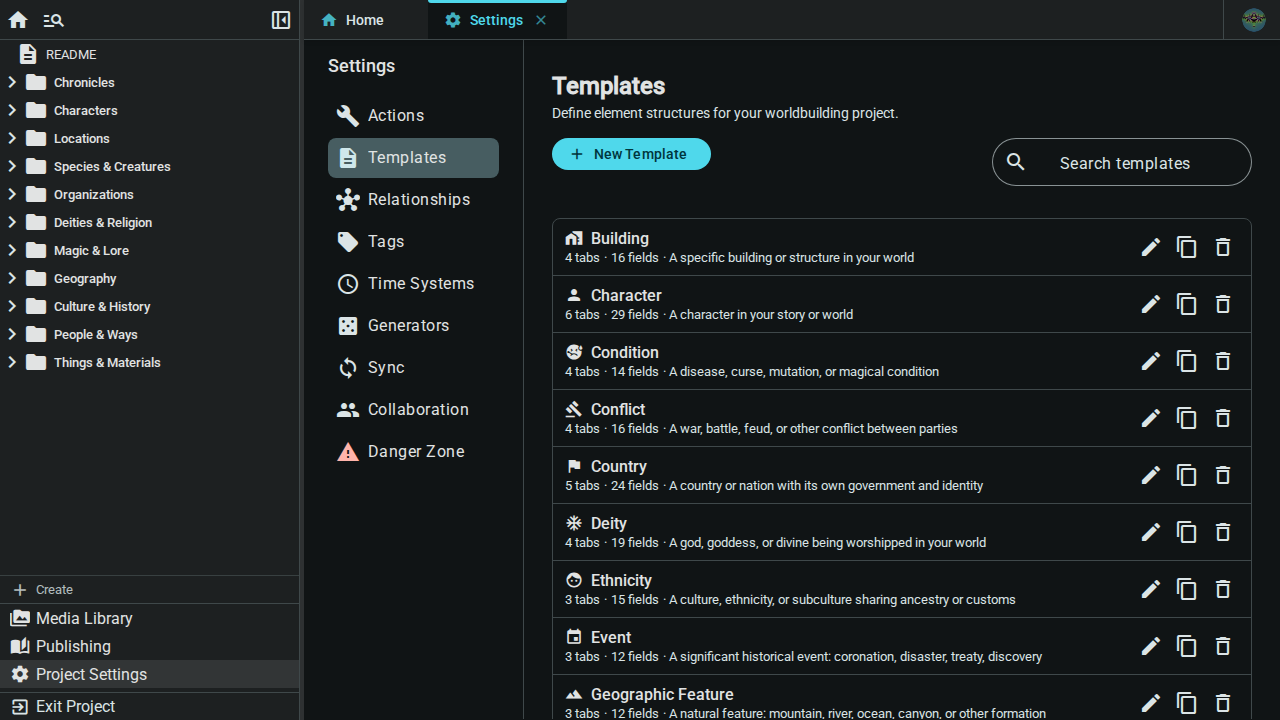
The Templates section of Project Settings shows all your templates at a glance. Each template card displays:
- Name and icon (visual identifier)
- Tab and field counts, plus the template's description
- Edit, Clone and Delete buttons
Template Components
A template consists of:
| Component | Description |
|---|---|
| Name | What this element type is called (e.g., "Faction") |
| Icon | Visual identifier in the project tree |
| Tabs | Sections to organize fields |
| Fields | Individual data points to capture |
Field Types
These are the types offered in the Field Type list of the field settings dialog:
| Type | Use For | Example |
|---|---|---|
| Text | Names, titles, brief info | "Elena Blackwood" |
| Text Area | Longer plain-text descriptions | Backstory summary |
| Number | Numeric values | "Level: 5" |
| Date | Timeline entries | "Founded: 1242" |
| Select | Pick one option from a list | "Faction Type: Guild" |
| Multi Select | Pick several options | "Abilities: Flight, Magic" |
| Checkbox | Yes/No values | "Active: ✓" |
| Array (Tags) | A list of short entries | Tags, features |
| Relationship | Link to another element (see below) | "Mother: Elena Blackwood" |
There is no separate "rich text" field type. Text Area fields hold plain text; to link to other elements, use a Relationship field, or @ references in your prose documents.
Relationship Fields
A Relationship field lets an element point at other elements straight from its form — for example a Character with a Mother field, or a Location with a Ruler field. In the field settings dialog you can set:
| Setting | What it does |
|---|---|
| Linked element template | Restricts which elements can be picked. Choose a template (say, Character) to only offer elements of that type, or leave it on Any element. |
| Backlink label | What the linked element sees in its own Relationships section, such as Child of. If left blank, the field's label is used. |
| Allow multiple | Off: the field holds a single element, and choosing another replaces the first. On: you can link several elements (a Children field, for instance). |
In an element, the field shows the linked elements as small cards with a Link element / Change element button and a Remove link (×) button. A link whose element has been deleted shows as Deleted element until you remove it.
Behind the scenes, every relationship field creates a relationship type for you, named after the field. These links are ordinary relationships: they show up in the element's Relationships section, appear as backlinks on the linked element, and are drawn on relationship charts. In Project Settings → Relationships such a type carries a Template field badge and is read-only — change it by editing the field in the template instead. See Relationships.
The Template Editor
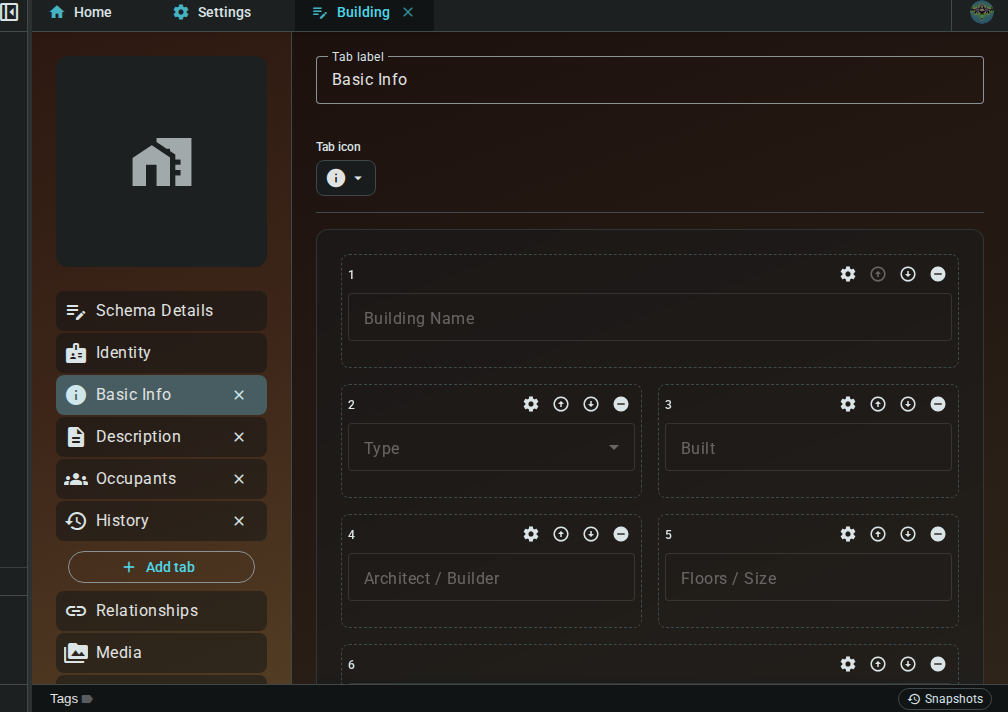
When you create or edit a template, the Template Editor opens as a live, interactive preview of the template. It's not a separate form — you edit the template directly in the same editor you use to fill in elements, so you can see exactly how the fields will look as you build them.
The editor is organised into sections down the left-hand navigation (or as stacked panels on narrow screens):
- Schema Details (the top section) — the template's name, icon, and description
- Tabs — one section per tab, where you manage that tab's fields
- Identity, Relationships, Media, Styling — the fixed sections every element has
In each tab you can:
- Add fields with the "Add field" button
- Edit a field in a settings dialog — click the field's edit control (⚙) to change its label, key, type, placeholder, options, required state, column span, and more
- Remove or reorder fields with the controls on each field
- Rename the tab and pick its icon from a picker dialog at the top of the tab
- Add or remove tabs from the navigation
Column span controls how wide a field is across the tab's 12-column grid — pick a span in the field settings dialog, and the preview reflects it.
Under Schema Details you set the template's name, icon, and description. Under Styling you can set a default appearance (backgrounds) and default image that new elements of this type get.
Changes save automatically as you edit — there's no separate Save step. You can also create and restore template snapshots from the snapshot button to protect your work while designing.
Template Examples
Here are examples of templates you might create. Remember, these are just suggestions—design templates that fit your story's needs.
Character Template
Track people in your story:
Tab: Basic
- Name (Text)
- Aliases (Text)
- Age (Text)
- Role (Select: Protagonist, Antagonist, Supporting)
Tab: Description
- Appearance (Text Area)
- Personality (Text Area)
- Motivations (Text Area)
Tab: Background
- Backstory (Text Area)
- Skills (Array)
- Mentor (Relationship, linked template: Character)
Location Template
Track places in your world:
Tab: Overview
- Name (Text)
- Type (Select: City, Town, Wilderness, Building)
- Region (Relationship, linked template: Location)
Tab: Details
- Description (Text Area)
- History (Text Area)
- Notable Features (Array)
Faction Template
Track organizations and groups:
Tab: Overview
- Name (Text)
- Type (Select: Guild, Government, Religious, Criminal)
- Motto (Text)
Tab: Structure
- Leader (Relationship, linked template: Character)
- Hierarchy (Text Area)
- Membership Size (Number)
Tab: Goals
- Objectives (Text Area)
- Allies (Relationship, allow multiple)
- Enemies (Relationship, allow multiple)
Item Template
Track objects and artifacts:
Tab: Basic
- Name (Text)
- Type (Select: Weapon, Armor, Tool, Artifact)
- Rarity (Select: Common, Rare, Legendary)
Tab: Properties
- Appearance (Text Area)
- Magical Effects (Text Area)
- Limitations (Text Area)
Tab: History
- Creation (Text Area)
- Notable Owners (Relationship, allow multiple)
Managing Templates
Editing Templates
- Go to Project Settings → Templates
- Click the Edit button (pencil icon) on the template's row to open the Template Editor
- Add, remove, or reorder fields within each tab
- Changes save automatically — just close the editor when you're done

Template changes reach new elements straight away. Existing elements keep their own copy and show an update badge on their schema chip until you choose Update from shared schema — see Per-Element Schemas. Removing a field never deletes the values already stored in an element; the field simply stops being shown once the element is updated.
Cloning Templates
To create a variation of an existing template:
- Find the template in the Templates section of Project Settings
- Click its Clone button (copy icon)
- A copy is created with "(Copy)" appended to the name
- Edit the cloned template to customize it
Deleting Templates
- Click the Delete button (bin icon) on the template's row
- Confirm the deletion
Deleting a template does not delete elements that use it. Each element keeps its own copy of the schema and carries on working, labelled Custom schema (template removed), but can no longer be updated from or reverted to the template.
Elements created before per-element schemas were introduced only get their copy the first time they are opened. Open any such element before deleting its template, or its fields will no longer be shown.
Organizing Fields
- Reorder fields within a tab using the up/down arrows on each field
Working with Elements
Where to Store Elements
Organize elements however makes sense for your project:
- By type: People/, Places/, Factions/
- By story section: Act 1/, Act 2/
- By relationship: The Kingdom/, The Rebellion/
Connecting Elements
Elements become powerful when connected:
- @mentions: Reference elements in prose with
@ElementName - Relationships: Define semantic connections (parent, ally, located-in)
- Backlinks: See everywhere an element is referenced
See Element References and Relationships for details.
The Worldbuilding Editor
When you open an element, the worldbuilding editor provides a structured workspace for editing its data. The editor adapts its layout based on your screen size.
Desktop Layout (Sidenav)
On screens wider than 760px, the editor uses a sidenav layout with a navigation rail on the left and a content area on the right.
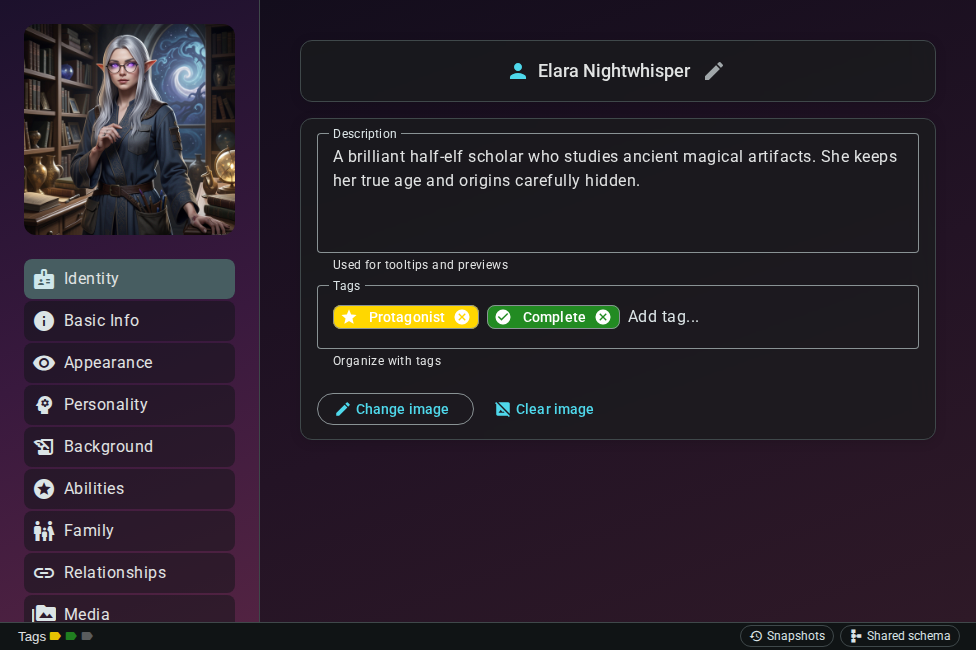
| Area | Purpose |
|---|---|
| Sidenav (left) | Navigation rail with section links and element thumbnail |
| Content (right) | The active section's fields and panels |
| Status bar (bottom) | Tags, document snapshots, and sync status |
The sidenav shows:
- Element thumbnail — click to view the full-size identity image
- Identity — name, description, and image
- Schema tabs — one entry per tab defined in the template (e.g., Basic Info, Appearance)
- Relationships — connections and backlinks
- Media — images and files tagged to this element
- Styling — custom backgrounds for the editor (only shown if you can edit the project)
Identity Panel
The Identity section holds the element's core identity:
- Name — displayed at the top (read-only; use the rename button to change it)
- Image — upload, crop, or generate an AI image for the element
- Description — a free-text summary of the element
- Tags — visual labels for organizing and filtering
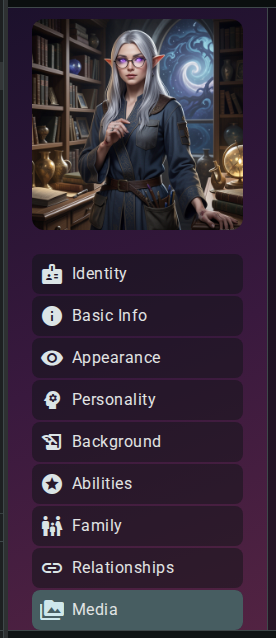
Custom Backgrounds
The Styling section (the last entry in the navigation, visible if you can edit the project) contains an Appearance panel that lets you give the editor's two regions — the left-hand menu (sidenav) and the right-hand content area — their own background. This is a per-element setting, so each character, location, or item can have a distinct look.
For each region you can:
- Enable the custom background with the toggle.
- Choose a type: solid colour, gradient, or an image from your media library.
- Choose a theme mode:
- Auto — a single value that the editor adjusts for the active light/dark theme (images are automatically brightened or darkened so overlaid text stays readable).
- Manual — separate values for the light theme and the dark theme.
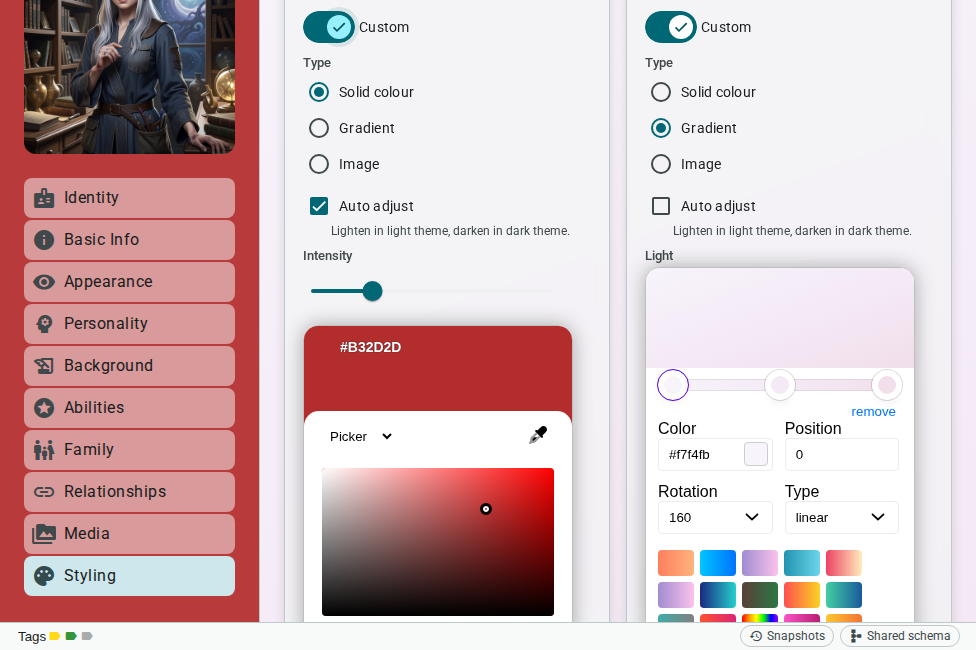
A solid colour applied to the left-hand menu.
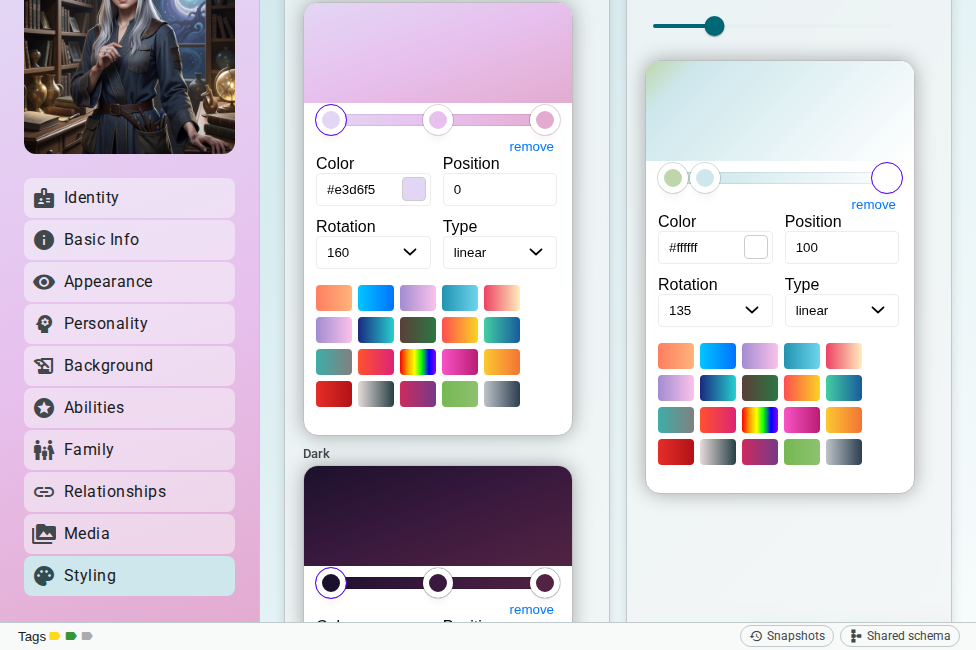
A gradient applied to the content area.
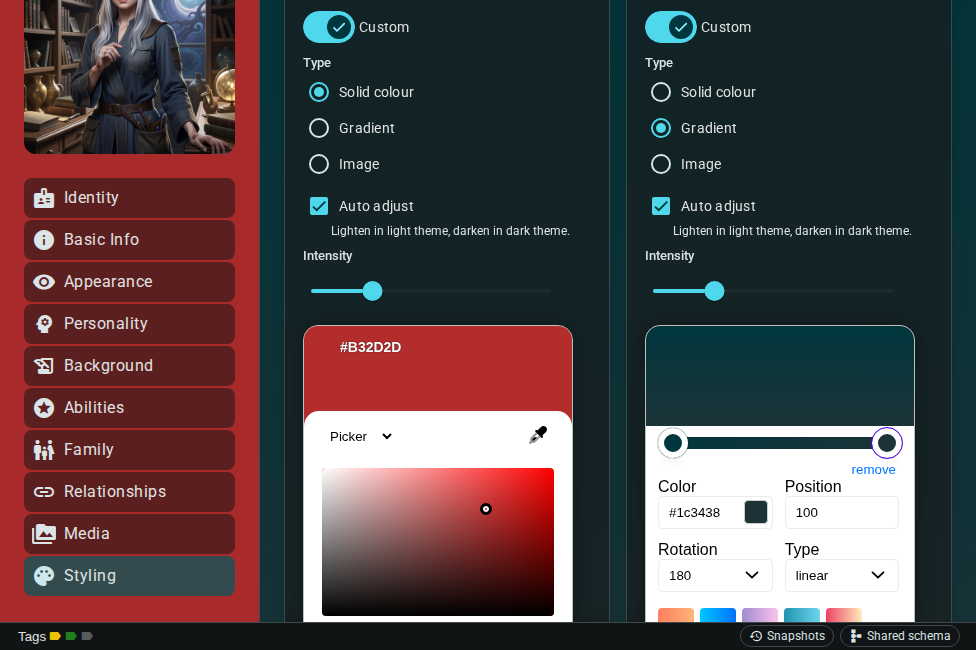
Both regions use custom backgrounds in dark mode.
Backgrounds are stored with the element and sync to collaborators in real time, like the rest of the identity data.
Schema Tab Fields
Each template tab renders its fields as a form. Field types include text inputs, text areas, selects, multi-selects, numbers, dates, checkboxes, arrays, and relationship fields.
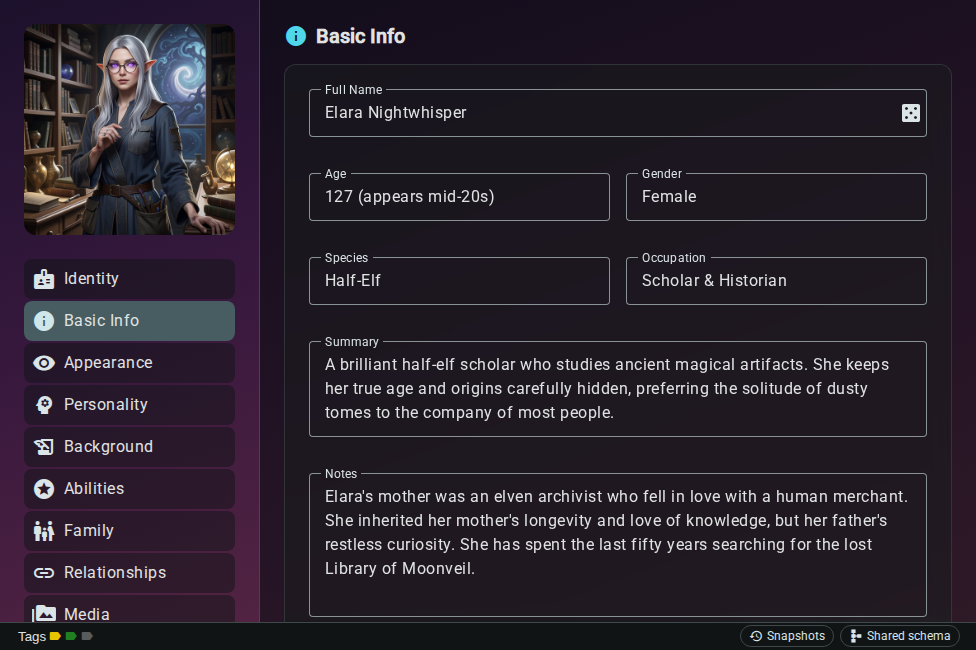
Fields are laid out in a responsive grid. Each field's span (set in the template editor) controls how many columns it occupies — a span of 12 is full-width, 6 is half-width.
Relationships Section
The Relationships section shows all connections for the element — both outgoing relationships you've created and incoming backlinks from documents and other elements.
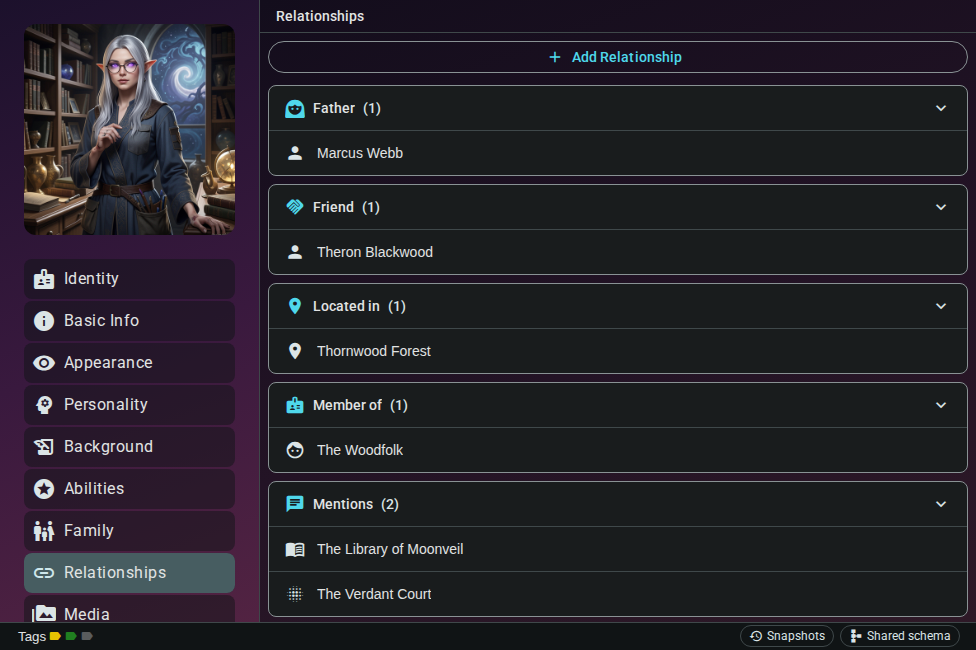
See Relationships for details on creating and managing connections.
Media Panel
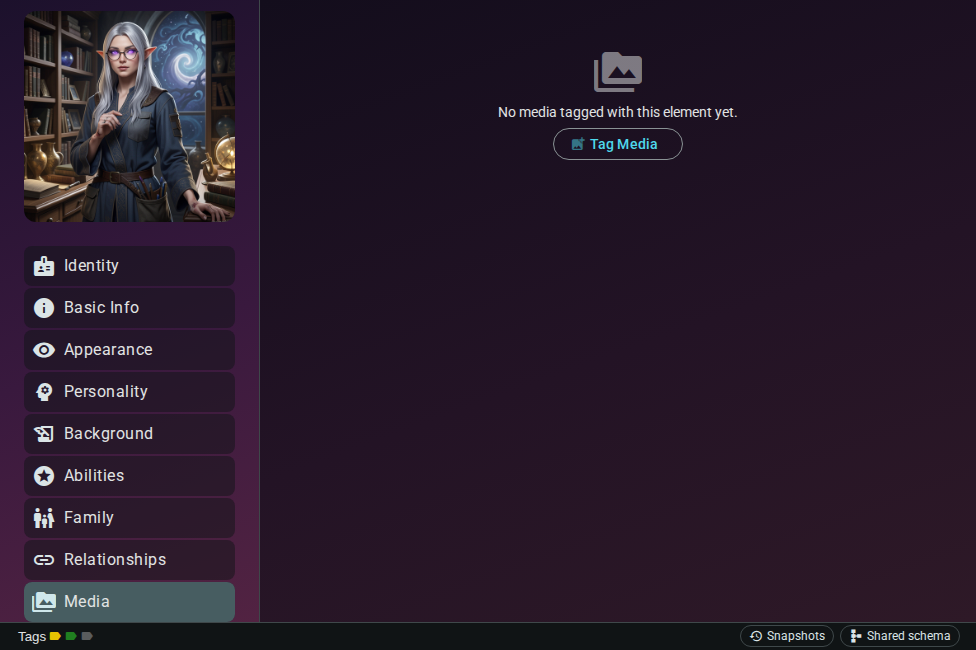
The Media panel lists all media items tagged to this element. Add images from your media library or remove tags you no longer need.
Status Bar
The status bar at the bottom of the editor shows:
| Control | Purpose |
|---|---|
| Schema chip | Shows how the element's schema relates to its template (below) |
| Tags | View and manage element tags (click to open the tag editor) |
| Snapshots | Open the document snapshots dialog to save or restore versions |
| Sync indicator | Shows the real-time sync state (synced, syncing, or offline) |

Per-Element Schemas
Every element keeps its own copy of its template's structure (its schema). The schema chip in the status bar tells you how that copy relates to the template it came from:
| Chip | Meaning |
|---|---|
| Shared schema | The element matches the template it was created from |
| Custom schema | The element's tabs or fields have been changed, just for this element |
| Custom schema (template removed) | The template has been deleted; the element keeps working from its own copy |
| Update badge | The template has changed since this element was created or last updated |
Click the chip to open the schema menu:
- Edit schema — edit this element's tabs and fields in place, using the same controls as the Template Editor. A banner confirms that other elements aren't affected; click Done editing when you're finished. Changes save automatically. The template's name, icon, description and defaults can only be changed in the Template Editor.
- Update from shared schema — available when the template has changed. The template wins for every tab and field it defines. Anything only this element has is kept and appended, and the confirmation lists what will be kept. This includes fields the template has since removed, because the element can't tell a field you added from one the template dropped.
- Revert to shared schema — available on a custom schema. Discards this element's changes and copies the current template back in.
None of these actions deletes field values. A field that disappears from the element's schema just stops being shown, and its value reappears if the field comes back. You need write access to the project to change an element's schema.
Project archives and snapshots include each element's schema copy, so a custom element survives export, import and restore unchanged.
Mobile Layout (Accordion)
On screens narrower than 760px, the sidenav is replaced with an accordion layout. All sections — Identity & Details, schema tabs, Relationships, Media, and Styling (if you can edit the project) — are rendered as collapsible panels stacked vertically.
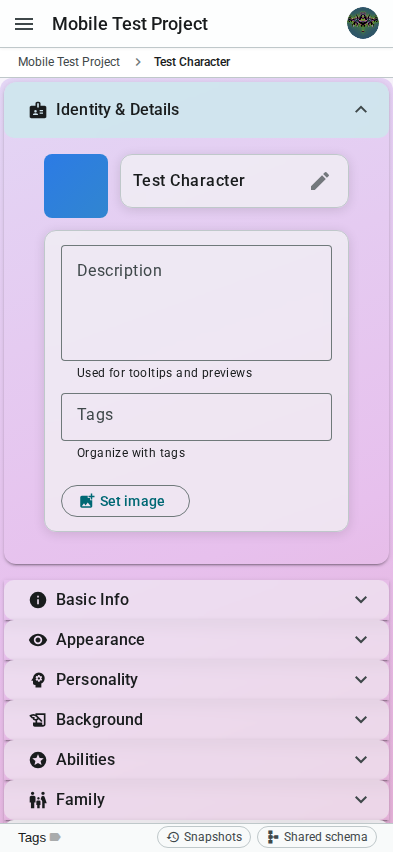
The Identity & Details panel is expanded by default. Tap any panel header to expand or collapse it. The accordion layout provides the same editing capabilities as the desktop sidenav, optimized for touch interaction.