Relationships
Relationships define meaningful connections between your story elements—family ties, alliances, ownership, or spatial connections. Element references are also relationships, automatically created when you mention an element in a document.
Manual vs. Automatic Relationships
| Feature | Element References (@mentions) | Manual Relationships |
|---|---|---|
| Creation | Automatic when typing @ | Explicit via dialog |
| Display | Inline links in text | Listed in the Relationships section |
| Backlinks | Yes, on the referenced worldbuilding element | Yes, with inverse label |
| Types | Generic "references" | Familial, Social, Spatial, etc. |
Quick Start
- Open any worldbuilding element
- Open the Relationships section in the element navigation
- Click "Add Relationship" at the top of the section
- Select a relationship type (e.g., "Parent", "Sibling", "Located In")
- Search and select the target element
- Optionally add a note
- Click Add Relationship
The dialog walks you through three steps: 1. Select Relationship Type, 2. Select Target Element, and 3. Add Note (Optional). Under the type you pick, it shows how the target will see the link (for example Target will see this as: Child of).
The Relationships Section
When you open a worldbuilding element, the Relationships section shows all connections for that element.
Panel Structure
- Add Relationship button at the top
- Relationship type sections (e.g., "Parent", "Child of", "Sibling")
- Each type expands/collapses independently
- Shows count of relationships in that category
- Lists all relationships of that type
Relationship Cards
Each relationship displays as a card showing:
- Element icon based on the element's template
- Element name as a clickable link
- A more options (⋮) menu with Go to element and, for relationships you created from this element, Remove relationship
Click any relationship card to navigate directly to that element.
Bidirectional Nature
When you create a relationship, it appears on both elements:
- Outgoing: Shows on the source element with the primary label
- Incoming (Backlink): Shows on the target element with the inverse label
Example: If you mark "Marcus" as the Parent of "Elena":
- On Marcus's page, you see the outgoing relationship, labelled Parent.
- On Elena's page, you see the incoming backlink, labelled Child of.
Relationship Types
All relationship types are defined per-project in Project Settings. Demo templates may include pre-configured types to help you get started.
Two types are created automatically the first time you use them: Pinned on canvas (shown on the other element as Has pin) when you link a canvas pin to an element, and Mapped area on canvas (shown as Has mapped area) when you link a shape as a region. They appear alongside your own types and show which maps an element is placed on.
Template-managed relationship types
When a template has a Relationship field (for example a Mother field on a Character), Inkweld creates a matching relationship type for it automatically. These types appear in the list with a Template field badge and have no Edit, Duplicate or Delete buttons: they're managed by the template field, so to change one, edit the field in the template. See Relationship Fields.
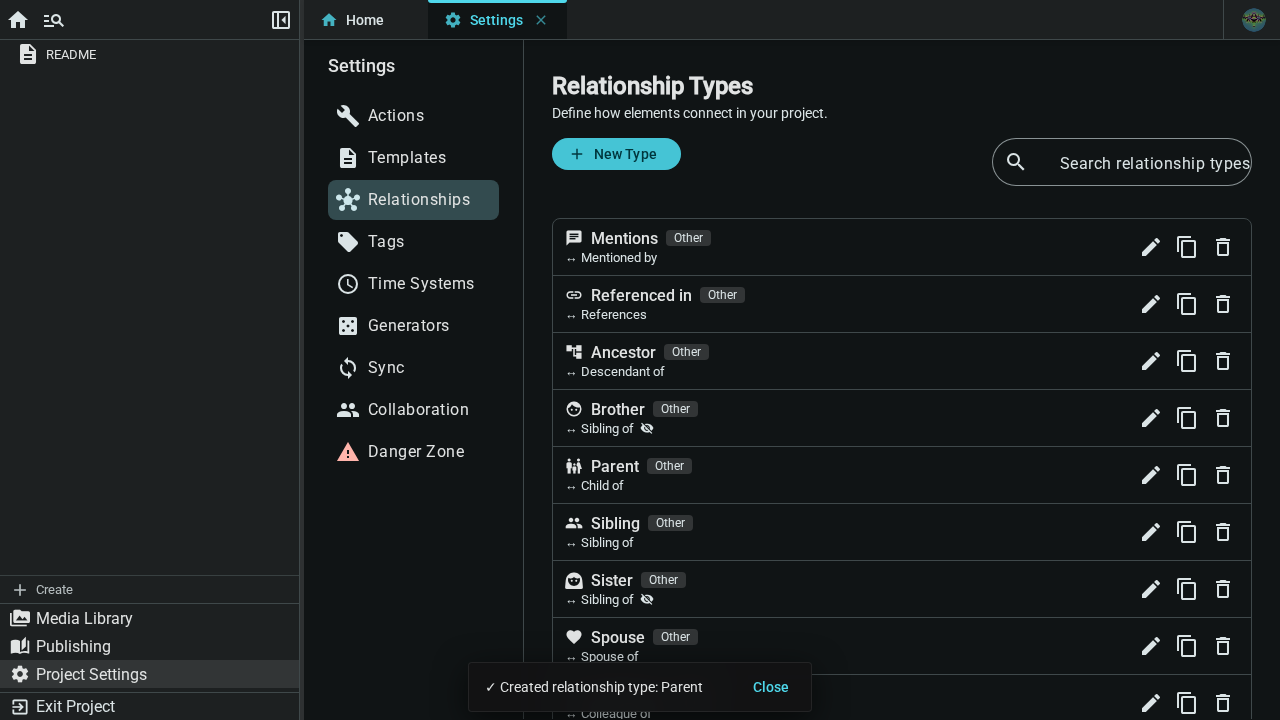
Creating a Relationship Type
- Go to Project Settings → Relationships
- Click "New Type"
- Use the full editor to configure the type (see below)
- Click Create to save the type
Editing a Relationship Type
Click the Edit (pencil) button on any type to open the full editor with all existing values pre-filled, change what you need, then click Save.
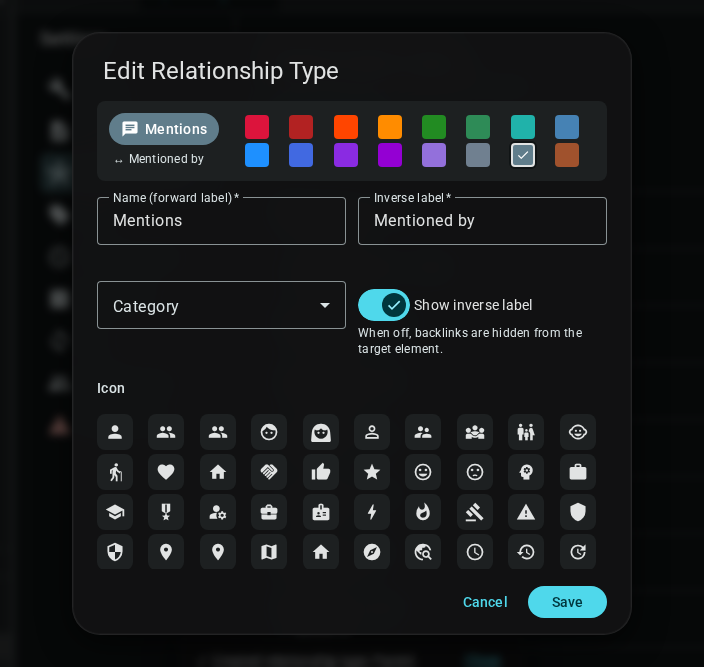
Relationship Type Editor
The editor lets you configure every aspect of a relationship type:
| Field | Description |
|---|---|
| Name | Primary (outgoing) label, e.g. "Parent", "Mentor", "Located In" |
| Inverse label | Backlink label shown on the target element, e.g. "Child of", "Student of" |
| Show inverse | Toggle whether backlinks appear on the target element |
| Category | Organises types for sorting — Family, Social, Professional, Location, Timeline, Ownership, Reference, or Other |
| Icon | Choose from a grid of Material icons (same picker as Tags) |
| Color | Choose from 16 preset colors (same palette as Tags) |
| Source — allowed element types | Which element schemas can use this relationship as the source. Toggle "Any element type" for no restriction, or select specific types. |
| Source — max relationships | Optional cap on how many of this type a source element can have |
| Target — allowed element types | Which element schemas can be the target. Same options as source. |
| Target — max relationships | Optional cap on the target side |
Duplicating a Relationship Type
Click the Duplicate button on any type. The full editor opens pre-filled with the original type's data (name gets a "(Copy)" suffix). Modify anything you need, then click Create to save the copy.
Deleting a Relationship Type
Click the Delete button on the type and confirm. Deleting a type does not remove existing relationships that use it — those remain but will no longer be grouped under a named type.
Common Patterns
| Category | Primary → Inverse |
|---|---|
| Family | Parent ↔ Child of, Sibling ↔ Sibling of, Spouse ↔ Spouse of |
| Social | Friend ↔ Friend of, Mentor ↔ Student of, Employer ↔ Employee of |
| Location | Located In ↔ Contains, Adjacent To ↔ Adjacent To |
| Ownership | Owns ↔ Owned By, Member Of ↔ Has Member, Created By ↔ Creator of |
Multiple Relationships
An element can have many relationships of different types. Each type gets its own collapsible section in the Relationships panel.
Managing Relationships
Deleting Relationships
To remove a relationship:
- Find the relationship card in the Relationships section
- Open its ⋮ menu and choose Remove relationship
The relationship is removed immediately, with no confirmation step, and disappears from both elements. Backlinks (incoming relationships) can only be removed from the element that created them.
Changing a Relationship
To change a relationship's type or target:
- Remove the existing relationship
- Create a new one with the correct type and target