Timeline
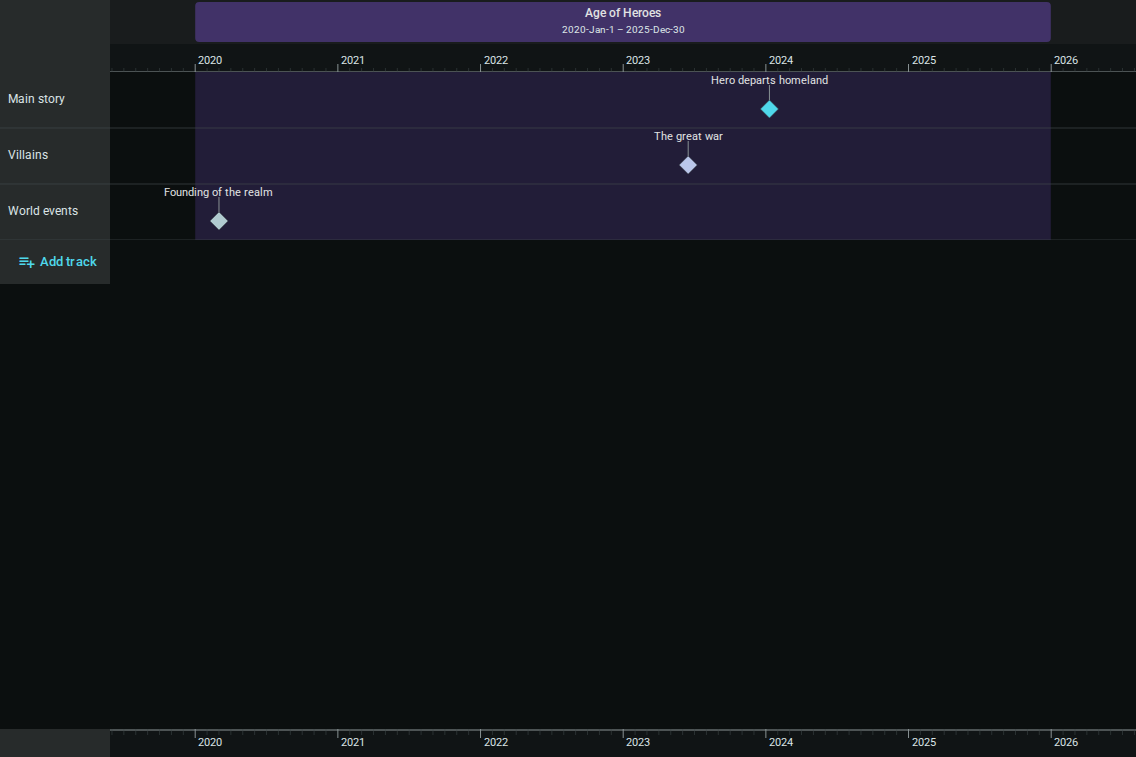
The Timeline element gives your story a plottable chronology. Drop events onto named tracks, group stretches of history into coloured eras, and do it all against either the real‑world Gregorian calendar or a bespoke fantasy calendar of your own design.
Creating a Timeline
- Right‑click in the Project Tree sidebar (or click the + button) and choose New Element
- Pick Timeline in the Create New dialog
- Give it a name (e.g., "Main Timeline", "Villain Arc", "Age of Empires") and click Create Timeline
The timeline opens in its own project tab and asks you to choose a time system before you can add anything. If you haven't installed any time systems yet, it offers an Open time system settings button — see Time Systems below.
The Interface
| Area | Purpose |
|---|---|
| Toolbar (top) | Add event / era, auto‑build from elements, zoom + fit |
| Top band (sticky) | Era header strip and the top dateline |
| Tracks area (middle, scrollable) | Named lanes holding events and era bands, plus Add track |
| Bottom band (sticky) | Bottom dateline mirroring the top axis |
| Status bar (bottom) | The timeline's time system (with a lock icon) and counts of tracks, events and eras |
The top and bottom timeline bands stay pinned while you scroll vertically through tracks, so you never lose your sense of when you're looking at.

Time Systems
A time system defines the calendar your timeline uses. Inkweld ships with a Gregorian system, and your project can install additional systems — including fantasy calendars with any number of subdivisions (e.g., cycles / moons / nights, ages / seasons / days).
Picking a system
The first time you open a new timeline, a Choose a time system card appears. Pick one from the Time system list and click Use this system. (Manage time systems takes you to the project settings if you want to install or design another first.)
Once you click Use this system, that timeline keeps its calendar for good: every event and era is stored against it, so switching would hide everything you had already placed. The status bar at the bottom shows the active system with a lock icon. To use a different calendar, create a new timeline and pick that calendar there.
Installing or designing a system
Open Project Settings → Time Systems on your project to install or design systems. A designed system lets you name its units, set subdivision sizes (e.g., 13 moons of 28 nights), and define a display format like C{u0} M{u1} N{u2}.
The Worldbuilding demo project ships with the Moonveil Reckoning fantasy calendar as an example.
Tracks
Tracks are horizontal lanes that group related events — one track for main‑story beats, one for villain movements, one for background world events, and so on.
| Action | How |
|---|---|
| Add a track | Click Add track at the bottom of the left column; you'll be prompted for a name |
| Rename a track | Click the track's label in the left column; the prompt pre‑fills the current name |
Tracks span the full width of the timeline and are visually separated by horizontal dividers. The left‑column surface is slightly elevated so labels stay legible against ticks and events.
Events
Events are the beats of your story. Each event belongs to a track and has a start date (and optional end date to span a range).
Adding an event
- Click Add event in the toolbar
- Fill in the title, pick the track, and enter a start date in the active time system's format
- Optionally switch on Ranged event and enter an end date
- Click Save
The pill appears on the chosen track at the right horizontal position. A single‑instant event renders at a minimum width; ranged events grow with their duration.
Editing or moving an event
- Click an event pill to re‑open the editor dialog — useful for renaming, changing track, or adjusting the description
- Drag the body to move the event along its track
- Drag an edge handle to resize a ranged event
Edits persist as you go — there's no explicit save step.
Linking Events to Elements
Each event can be linked to a worldbuilding element — a character, location, or any other element in your project. When linked:
- The event pill shows the element's association visually
- The connection appears in the element's context, tying your chronology to your worldbuilding
To link an event, open the event editor dialog and select an element from the linked-element picker. This is especially powerful for character arcs: link each beat of a character's journey to their element, and the timeline becomes a living part of their profile.
The demo project's Moonveil Chronicle timeline links events to characters like Elara and locations like Cloudspire Academy — open it to see linked events in action.
Auto-Building from Elements
If your worldbuilding templates have date fields (a character's birth date, the founding of a city, the day a battle was fought), the timeline can turn them into events for you.
- Click Auto-build from elements in the timeline toolbar
- Inkweld lists every element with a date field that is filled in, showing the element, the field and its value
- Tick the ones you want, or use Select all / Select none
- Click the Add N events button at the bottom of the dialog (for example Add 3 events; with one selected it reads Add 1 event)
Each selected date becomes an event titled Element: Field (for example Elara: Born), linked to its element and placed on the first track. Drag it to another track or edit it like any other event.
A date only appears in the list if it is written in the format of the timeline's active time system, with every unit filled in (for the Gregorian system, year, month and day). Dates in another system, or missing a unit, are skipped. If nothing qualifies the dialog says so: add a date field to a template and fill it in on some elements first.
Running it again
Run auto-build again after you change a date or add more elements. Dates that are already on the timeline are marked Already on timeline, and the dialog starts with them unticked.
After you click the Add N events button, the auto-built events on the timeline are exactly the ones that were ticked. An auto-built event whose row was left unticked is removed, so when you run auto-build again, tick the existing rows too (or use Select all) to keep them. Ticked existing events are updated to the element's current date and name and keep their track. Events you added by hand are never affected.
Eras
Eras are coloured bands spanning a range of time across all tracks. Use them to mark off big chunks of history ("The First Age", "Pre‑war era", "Dreamtime") so a reader can see context at a glance.
| Action | How |
|---|---|
| Add an era | Click Add era; pick a start, end, name, and colour (optionally a background image) |
| Move an era | Drag the era body left or right |
| Resize an era | Drag either edge handle |
| Edit / delete | Click the era body to re‑open the dialog |
Era background images
In the era dialog, the Background image section lets you click Choose from library to pick any image from your project's media library as a backdrop for the era band, and Remove to clear it again. Use it for a banner, texture or map fragment that sets the mood of the period.
Era labels appear in the top band, so you can always see which era contains the portion of the timeline you're viewing.
Navigation
| Control | Description |
|---|---|
| Zoom in | Tighten the visible tick span |
| Zoom out | Widen the visible tick span |
| Fit contents | Frame all events and eras in view |
| Wheel / trackpad | Scroll to pan horizontally, pinch or hold Ctrl to zoom |
| Drag the axis | Click‑drag empty space on the dateline to pan |
Tips
- Start with one or two tracks and add more as your chronology grows more complex
- Use eras for context, not as a substitute for events — a "War" era might contain many individual event pills
- Colour‑code tracks by meaning (protagonists, antagonists, world events) so the timeline reads at a glance
- Choose your time system carefully — it is locked per timeline once you commit. If you need a second calendar (say, a fantasy calendar alongside the Gregorian one), make a second timeline
- Refresh anytime — your timeline is saved automatically and comes back exactly as you left it