The Editor
Inkweld's editor is built for long-form creative writing. It combines the simplicity of a word processor with features for collaborative storytelling.
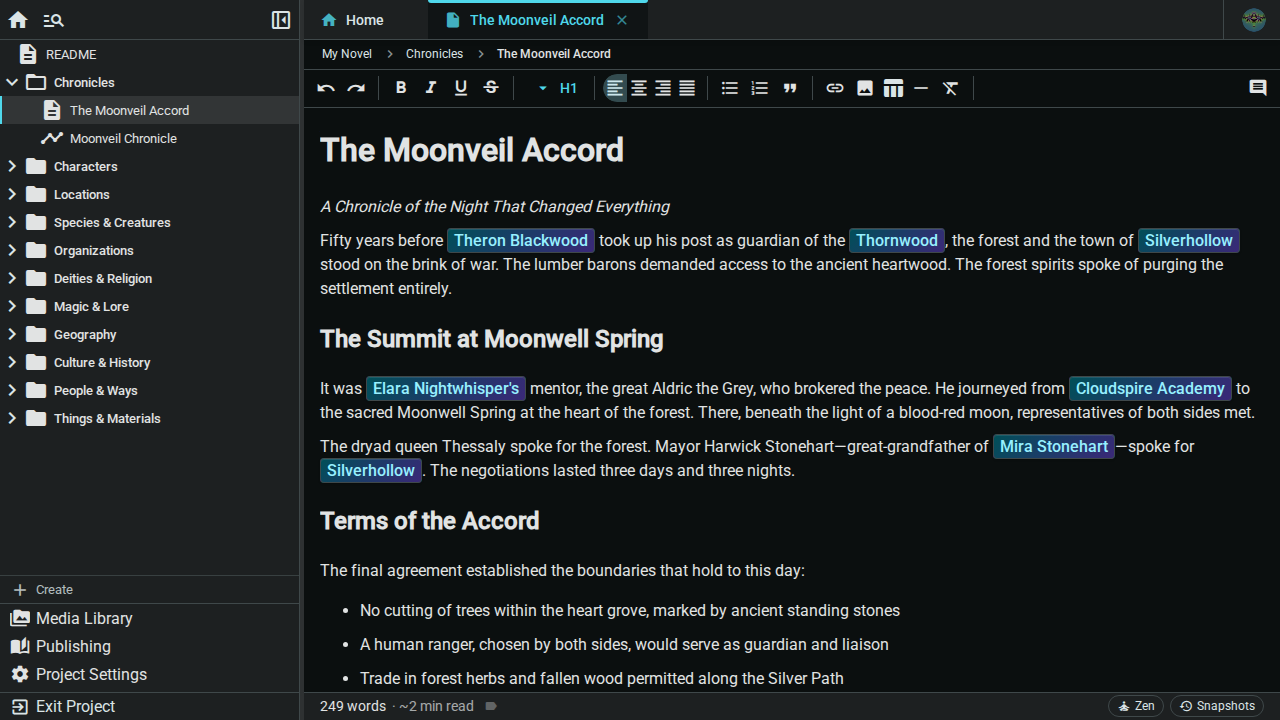
Editor Layout
The editor occupies the center of your project workspace:
- Toolbar: Formatting buttons at the top
- Writing Area: Where you type your content
- Status Bar: Word count, reading time, tags, sync status, Zen mode and Snapshots along the bottom (see The Status Bar)
- Comments panel: Opens on the right when you click the Comments button. See Comments
- Auto-Review panel: Also opens on the right, when your server has AI enabled. See AI Review
Worldbuilding elements (characters, locations and so on) have their own editor with a side panel for relationships and backlinks. See Worldbuilding.
Basic Writing
Simply click in the editor and start typing. The editor behaves like any word processor:
- Text wraps automatically
- Press Enter to create a new paragraph
- Press Backspace to delete characters
- Select text with click-and-drag or keyboard shortcuts
Autosave
Your work saves automatically:
- Changes sync in real-time with the server
- No "Save" button needed
- A small coloured dot in the status bar shows the sync state. Hover over it for the details:
- Document synced: Saved on the server
- Syncing…: A save is in progress
- Offline - changes saved locally: Your edits are stored on this device and will sync when you reconnect
- Unable to connect to server: The server could not be reached; your edits are still kept on this device
The Toolbar
The formatting toolbar provides quick access to styling options.
Text Formatting
| Button | Shortcut | Effect |
|---|---|---|
| B | Ctrl/Cmd + B | Bold |
| I | Ctrl/Cmd + I | Italic |
| U | Ctrl/Cmd + U | Underline |
Ctrl/Cmd + Shift + X |
Paragraph Styles
Click the paragraph style dropdown to choose:
- Paragraph (normal text)
- Heading 1 through Heading 6
Text Alignment
| Button | Effect |
|---|---|
| Left align | Align text left (default) |
| Center | Center text |
| Right align | Align text right |
| Justify | Justify text |
Lists and Quotes
| Button | Effect |
|---|---|
| Bullet list | Create a bulleted list |
| Numbered list | Create a numbered list |
| Quote | Create a block quote |
Insert and Editing
| Button | Effect |
|---|---|
| Insert link | Add or edit a hyperlink (Ctrl/Cmd + K) |
| Insert image | Add an image from your computer, your media library or, if enabled, AI (Ctrl/Cmd + Shift + I) |
| Table | Insert a table, or edit the rows and columns of the one you are in |
| Horizontal rule | Insert a scene break line |
| Clear formatting | Remove inline formatting (bold, italic, links and so on) from the selection |
| Undo | Undo last action (Ctrl/Cmd + Z) |
| Redo | Redo undone action (Ctrl/Cmd + Y on Windows/Linux, Cmd + Shift + Z on macOS) |
When the window is narrow, some groups of buttons collapse into a More formatting options menu at the end of the toolbar.
Floating Selection Menu
Select some text and a small menu appears next to it with Bold, Italic, Underline, Strikethrough, Link and Comment buttons, so you can format without reaching for the toolbar.
Document Tools
At the right-hand end of the toolbar:
| Button | Effect |
|---|---|
| Comments | Show the comments panel (Ctrl/Cmd + Alt + M adds a comment). See Comments |
| Auto-Review | Open the AI review panel. Only shown when your server has AI text features enabled. See AI Review |
Tags and Snapshots are in the status bar below the writing area, not the toolbar.
The Status Bar
The bar along the bottom of the editor holds:
- Word count and an estimated reading time
- Tag icon: Click it to manage the tags on this document. Existing tags show as coloured labels. See Tags
- Sync dot: Hover for the sync state (see Autosave)
- Zen: Switch to Zen Mode
- Snapshots: Open the document's snapshots
Markdown Shortcuts
The editor can convert Markdown-style typing as you go. This is off by default, because prose often starts a line with # or -. To turn it on:
- Open Settings (click your avatar, then Settings)
- Go to the General tab
- Tick Convert Markdown as I type
The change applies to documents you open afterwards, so reopen the document you are in. If a conversion happens when you did not want it, press Backspace straight away to undo it.
At Line Start
Type these at the beginning of a line:
| Type | Result |
|---|---|
# to ###### | Heading 1 to 6 |
- , + or * | Bullet list item |
1. | Numbered list item |
> | Block quote |
``` | Code block |
There is no Markdown shortcut for a horizontal rule; use the toolbar button or Ctrl/Cmd + Shift + H.
Inline Formatting
Wrap text with these characters and the formatting is applied when you type the closing one:
| Type | Result |
|---|---|
**text** | Bold |
*text* | Italic |
Typographic Replacements
With the setting on, the editor also tidies punctuation as you type:
- Straight quotes (
"and') become curly quotes - Three dots (
...) become an ellipsis (…) - Two hyphens (
--) become an em dash (—)
Text Selection
Mouse Selection
- Click and drag: Select a range of text
- Double-click: Select a word
- Triple-click: Select a paragraph
Keyboard Selection
- Shift + Arrow keys: Extend selection character by character
- Ctrl/Cmd + Shift + Arrow: Select word by word
- Shift + Home/End: Select to start/end of line
- Ctrl/Cmd + A: Select all content
Undo and Redo
The editor maintains full edit history:
- Undo:
Ctrl/Cmd + Z— Reverse the last action - Redo:
Ctrl + Yon Windows/Linux,Cmd + Shift + Zon macOS — Restore undone action
Copy, Cut, and Paste
Standard clipboard operations:
| Action | Shortcut |
|---|---|
| Copy | Ctrl/Cmd + C |
| Cut | Ctrl/Cmd + X |
| Paste | Ctrl/Cmd + V |
| Paste without formatting | Ctrl/Cmd + Shift + V |
Find and Replace
Use Find and Replace to locate and optionally replace text within the current document.
Opening Find
Press Ctrl/Cmd + F to open the find bar at the top of the editor.
Searching
- Type your search query in the find input
- Matches are highlighted in the document as you type
- The match counter shows your position (e.g., "2 of 5")
- The current match is highlighted distinctly from other matches
Navigating Matches
| Action | Shortcut / Button |
|---|---|
| Next match | Enter or click the down arrow |
| Previous match | Shift + Enter or click the up arrow |
| Close find bar | Escape or click × button |
Case Sensitivity
Click the Match Case button (the "Aa"-style text icon) to toggle case-sensitive matching. When enabled, "Hello" and "hello" are treated as different words.
Replacing Text
- Click the Toggle Replace button (the chevron at the left of the find bar) to reveal the replace row
- Type replacement text in the replace input
- Click the Replace button to replace the current match and advance to the next
- Click the Replace All button to replace every match at once
| Action | Shortcut |
|---|---|
| Replace current match | Enter in replace input |
| Replace all matches | Shift + Enter in replace input |
Zen Mode
For distraction-free writing, use Zen Mode:
- Click the Zen button in the status bar at the bottom of the editor
- The editor takes over the screen with minimal UI
- Click the × button at the top right to leave Zen Mode
By default Zen Mode also makes your browser fullscreen, and pressing Escape to leave fullscreen exits Zen Mode too. You can turn fullscreen off with Enable fullscreen in Zen mode in Settings, on the Project tab.
Zen Mode hides the project tree, tabs, toolbar and status bar so you can focus on writing.
Word Count
The status bar at the bottom of the editor shows the current word count and an estimated reading time. These update as you type.
AI Review
If your server administrator has enabled AI, an Auto-Review button appears at the right-hand end of the toolbar. It checks the document for grammar, spelling and style suggestions you can accept or reject. See AI Review.
Mobile View
On mobile devices, the editor adapts to your screen:
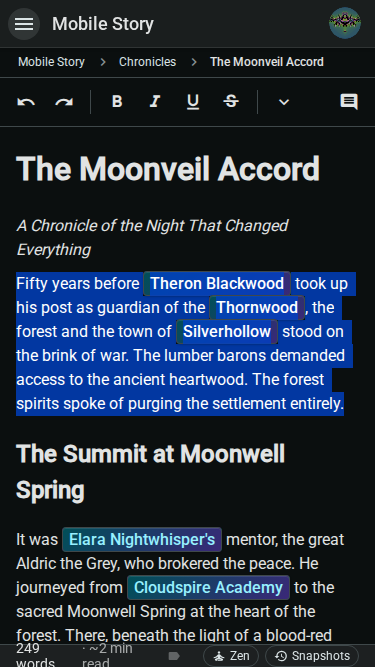
The toolbar shows essential actions, and you can swipe to access the project tree.